> ## Documentation Index
> Fetch the complete documentation index at: https://wb-21fd5541-docs-1778-mysql-updates.mintlify.site/llms.txt
> Use this file to discover all available pages before exploring further.
> Use model registry role based access controls (RBAC) to control who can update protected aliases.
# Manage data governance and access control
Use *protected aliases* to represent key stages of your model development pipeline. Only *Model Registry Administrators* can add, modify, or remove protected aliases. Model registry admins can define and use protected aliases. W\&B blocks non admin users from adding or removing protected aliases from model versions.
Only Team admins or current registry admins can manage the list of registry admins.
For example, suppose you set `staging` and `production` as protected aliases. Any member of your team can add new model versions. However, only admins can add a `staging` or `production` alias.
## Set up access control
The following steps describe how to set up access controls for your team’s model registry.
1. Navigate to the [W\&B Model Registry](https://wandb.ai/registry/model).
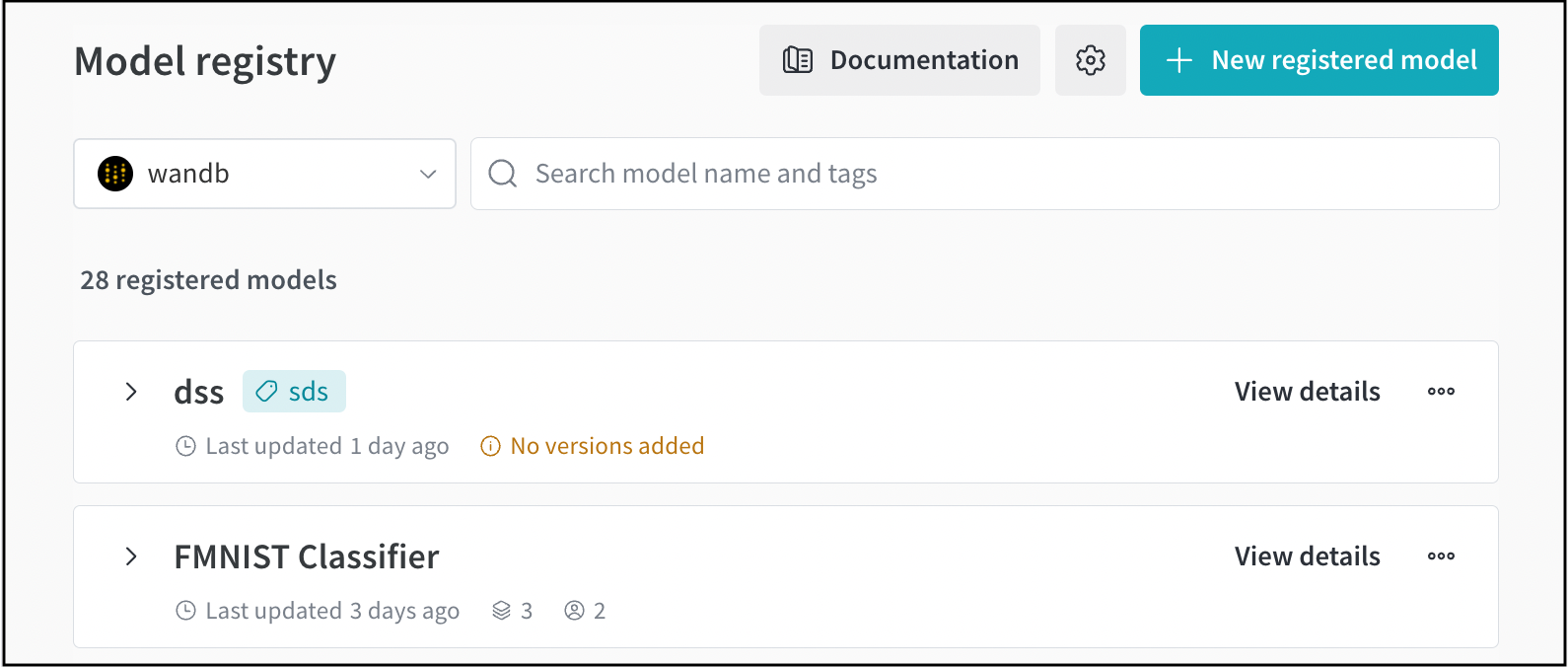
2. Select the gear button on the top right of the page.
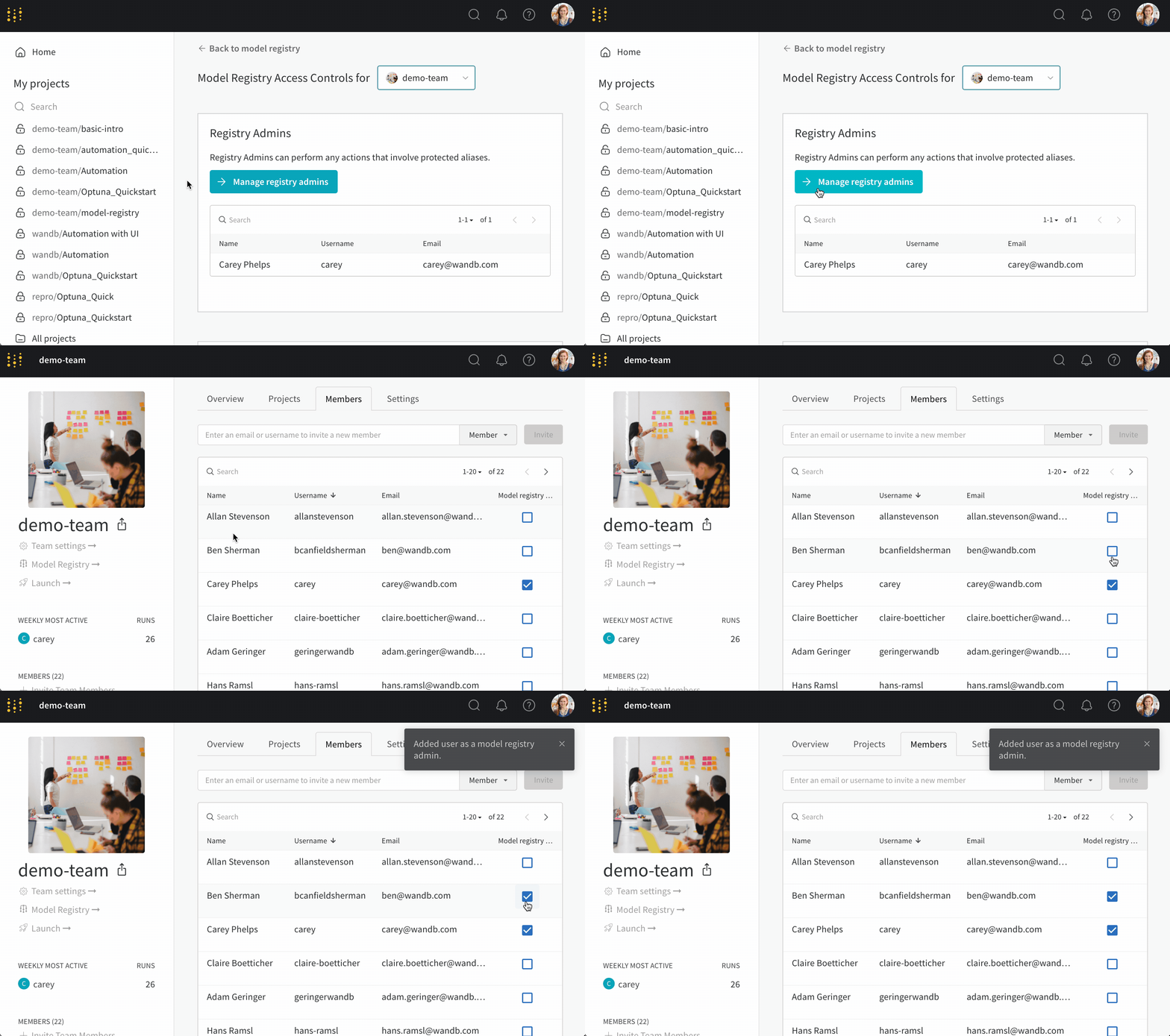
 3. Select the **Manage registry admins** button.
4. Within the **Members** tab, select the users you want to grant access to add and remove protected aliases from model versions.
3. Select the **Manage registry admins** button.
4. Within the **Members** tab, select the users you want to grant access to add and remove protected aliases from model versions.
 ## Add protected aliases
1. Navigate to the [W\&B Model Registry](https://wandb.ai/registry/model).
2. Select the gear button on the top right of the page.
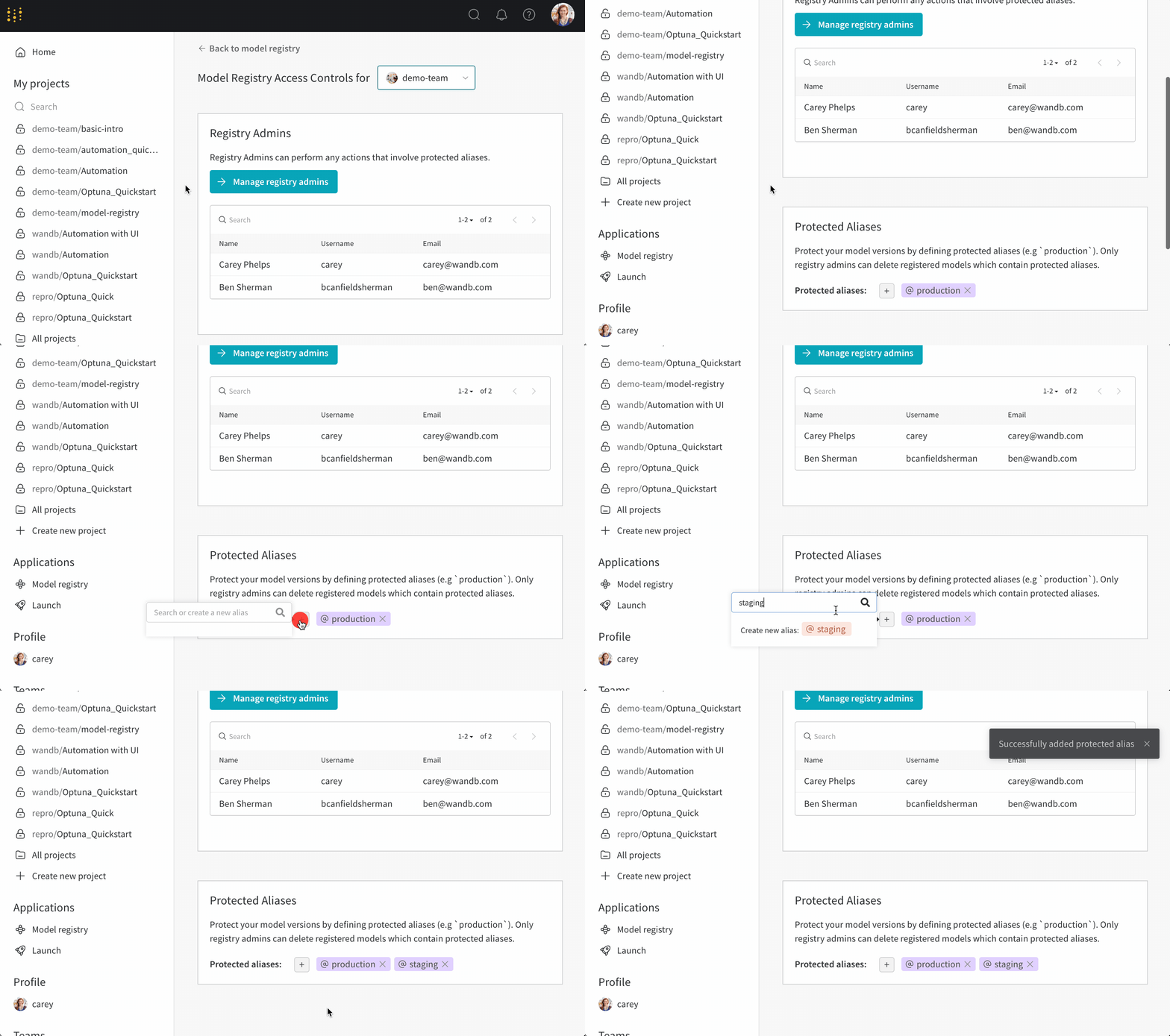
3. Scroll down to the **Protected Aliases** section.
4. Click on the plus icon (**+**) icon to add new a new alias.
## Add protected aliases
1. Navigate to the [W\&B Model Registry](https://wandb.ai/registry/model).
2. Select the gear button on the top right of the page.
3. Scroll down to the **Protected Aliases** section.
4. Click on the plus icon (**+**) icon to add new a new alias.