> ## Documentation Index
> Fetch the complete documentation index at: https://wb-21fd5541-docs-1778-mysql-updates.mintlify.site/llms.txt
> Use this file to discover all available pages before exploring further.
# 3D brain tumor segmentation with MONAI
export const ColabLink = ({url}) =>
Try in Colab
;
This tutorial demonstrates how to construct a training workflow of multi-labels 3D brain tumor segmentation task using [MONAI](https://github.com/Project-MONAI/MONAI) and use experiment tracking and data visualization features of [W\&B](https://wandb.ai/site). The tutorial contains the following features:
1. Initialize a W\&B Run and synchronize all configs associated with the run for reproducibility.
2. MONAI transform API:
1. MONAI Transforms for dictionary format data.
2. How to define a new transform according to MONAI `transforms` API.
3. How to randomly adjust intensity for data augmentation.
3. Data Loading and Visualization:
1. Load `Nifti` image with metadata, load a list of images and stack them.
2. Cache IO and transforms to accelerate training and validation.
3. Visualize the data using `wandb.Table` and interactive segmentation overlay on W\&B.
4. Training a 3D `SegResNet` model
1. Using the `networks`, `losses`, and `metrics` APIs from MONAI.
2. Training the 3D `SegResNet` model using a PyTorch training loop.
3. Track the training experiment using W\&B.
4. Log and version model checkpoints as model artifacts on W\&B.
5. Visualize and compare the predictions on the validation dataset using `wandb.Table` and interactive segmentation overlay on W\&B.
## Setup and Installation
First, install the latest version of both MONAI and W\&B.
```python theme={null}
!python -c "import monai" || pip install -q -U "monai[nibabel, tqdm]"
!python -c "import wandb" || pip install -q -U wandb
```
```python theme={null}
import os
import numpy as np
from tqdm.auto import tqdm
import wandb
from monai.apps import DecathlonDataset
from monai.data import DataLoader, decollate_batch
from monai.losses import DiceLoss
from monai.inferers import sliding_window_inference
from monai.metrics import DiceMetric
from monai.networks.nets import SegResNet
from monai.transforms import (
Activations,
AsDiscrete,
Compose,
LoadImaged,
MapTransform,
NormalizeIntensityd,
Orientationd,
RandFlipd,
RandScaleIntensityd,
RandShiftIntensityd,
RandSpatialCropd,
Spacingd,
EnsureTyped,
EnsureChannelFirstd,
)
from monai.utils import set_determinism
import torch
```
Then, authenticate the Colab instance to use W\&B.
```python theme={null}
wandb.login()
```
## Initialize a W\&B Run
Start a new W\&B Run to start tracking the experiment. Use of proper config system is a recommended best practice for reproducible machine learning. You can track the hyperparameters for every experiment using W\&B.
```python theme={null}
with wandb.init(project="monai-brain-tumor-segmentation") as run:
config = run.config
config.seed = 0
config.roi_size = [224, 224, 144]
config.batch_size = 1
config.num_workers = 4
config.max_train_images_visualized = 20
config.max_val_images_visualized = 20
config.dice_loss_smoothen_numerator = 0
config.dice_loss_smoothen_denominator = 1e-5
config.dice_loss_squared_prediction = True
config.dice_loss_target_onehot = False
config.dice_loss_apply_sigmoid = True
config.initial_learning_rate = 1e-4
config.weight_decay = 1e-5
config.max_train_epochs = 50
config.validation_intervals = 1
config.dataset_dir = "./dataset/"
config.checkpoint_dir = "./checkpoints"
config.inference_roi_size = (128, 128, 64)
config.max_prediction_images_visualized = 20
```
You also need to set the random seed for modules to enable or turn off deterministic training.
```python theme={null}
set_determinism(seed=config.seed)
# Create directories
os.makedirs(config.dataset_dir, exist_ok=True)
os.makedirs(config.checkpoint_dir, exist_ok=True)
```
## Data Loading and Transformation
Here, use the `monai.transforms` API to create a custom transform that converts the multi-classes labels into multi-labels segmentation task in one-hot format.
```python theme={null}
class ConvertToMultiChannelBasedOnBratsClassesd(MapTransform):
"""
Convert labels to multi channels based on brats classes:
label 1 is the peritumoral edema
label 2 is the GD-enhancing tumor
label 3 is the necrotic and non-enhancing tumor core
The possible classes are TC (Tumor core), WT (Whole tumor)
and ET (Enhancing tumor).
Reference: https://github.com/Project-MONAI/tutorials/blob/main/3d_segmentation/brats_segmentation_3d.ipynb
"""
def __call__(self, data):
d = dict(data)
for key in self.keys:
result = []
# merge label 2 and label 3 to construct TC
result.append(torch.logical_or(d[key] == 2, d[key] == 3))
# merge labels 1, 2 and 3 to construct WT
result.append(
torch.logical_or(
torch.logical_or(d[key] == 2, d[key] == 3), d[key] == 1
)
)
# label 2 is ET
result.append(d[key] == 2)
d[key] = torch.stack(result, axis=0).float()
return d
```
Next, set up transforms for training and validation datasets respectively.
```python theme={null}
train_transform = Compose(
[
# load 4 Nifti images and stack them together
LoadImaged(keys=["image", "label"]),
EnsureChannelFirstd(keys="image"),
EnsureTyped(keys=["image", "label"]),
ConvertToMultiChannelBasedOnBratsClassesd(keys="label"),
Orientationd(keys=["image", "label"], axcodes="RAS"),
Spacingd(
keys=["image", "label"],
pixdim=(1.0, 1.0, 1.0),
mode=("bilinear", "nearest"),
),
RandSpatialCropd(
keys=["image", "label"], roi_size=config.roi_size, random_size=False
),
RandFlipd(keys=["image", "label"], prob=0.5, spatial_axis=0),
RandFlipd(keys=["image", "label"], prob=0.5, spatial_axis=1),
RandFlipd(keys=["image", "label"], prob=0.5, spatial_axis=2),
NormalizeIntensityd(keys="image", nonzero=True, channel_wise=True),
RandScaleIntensityd(keys="image", factors=0.1, prob=1.0),
RandShiftIntensityd(keys="image", offsets=0.1, prob=1.0),
]
)
val_transform = Compose(
[
LoadImaged(keys=["image", "label"]),
EnsureChannelFirstd(keys="image"),
EnsureTyped(keys=["image", "label"]),
ConvertToMultiChannelBasedOnBratsClassesd(keys="label"),
Orientationd(keys=["image", "label"], axcodes="RAS"),
Spacingd(
keys=["image", "label"],
pixdim=(1.0, 1.0, 1.0),
mode=("bilinear", "nearest"),
),
NormalizeIntensityd(keys="image", nonzero=True, channel_wise=True),
]
)
```
### The Dataset
The dataset used for this experiment comes from [http://medicaldecathlon.com/](http://medicaldecathlon.com/). It uses multi-modal multi-site MRI data (FLAIR, T1w, T1gd, T2w) to segment Gliomas, necrotic/active tumour, and oedema. The dataset consists of 750 4D volumes (484 Training + 266 Testing).
Use the `DecathlonDataset` to automatically download and extract the dataset. It inherits MONAI `CacheDataset` which enables you to set `cache_num=N` to cache `N` items for training and use the default arguments to cache all the items for validation, depending on your memory size.
```python theme={null}
train_dataset = DecathlonDataset(
root_dir=config.dataset_dir,
task="Task01_BrainTumour",
transform=val_transform,
section="training",
download=True,
cache_rate=0.0,
num_workers=4,
)
val_dataset = DecathlonDataset(
root_dir=config.dataset_dir,
task="Task01_BrainTumour",
transform=val_transform,
section="validation",
download=False,
cache_rate=0.0,
num_workers=4,
)
```
**Note:** Instead of applying the `train_transform` to the `train_dataset`, apply `val_transform` to both the training and validation datasets. This is because, before training, you would be visualizing samples from both the splits of the dataset.
### Visualizing the Dataset
W\&B supports images, video, audio, and more. You can log rich media to explore your results and visually compare our runs, models, and datasets. Use the [segmentation mask overlay system](/models/track/log/media/#image-overlays-in-tables) to visualize our data volumes. To log segmentation masks in [tables](/models/tables/), you must provide a `wandb.Image` object for each row in the table.
An example is provided in the pseudocode below:
```python theme={null}
table = wandb.Table(columns=["ID", "Image"])
for id, img, label in zip(ids, images, labels):
mask_img = wandb.Image(
img,
masks={
"prediction": {"mask_data": label, "class_labels": class_labels}
# ...
},
)
table.add_data(id, img)
run.log({"Table": table})
```
Now write a simple utility function that takes a sample image, label, `wandb.Table` object and some associated metadata and populate the rows of a table that would be logged to the W\&B dashboard.
```python theme={null}
def log_data_samples_into_tables(
sample_image: np.array,
sample_label: np.array,
split: str = None,
data_idx: int = None,
table: wandb.Table = None,
):
num_channels, _, _, num_slices = sample_image.shape
with tqdm(total=num_slices, leave=False) as progress_bar:
for slice_idx in range(num_slices):
ground_truth_wandb_images = []
for channel_idx in range(num_channels):
ground_truth_wandb_images.append(
masks = {
"ground-truth/Tumor-Core": {
"mask_data": sample_label[0, :, :, slice_idx],
"class_labels": {0: "background", 1: "Tumor Core"},
},
"ground-truth/Whole-Tumor": {
"mask_data": sample_label[1, :, :, slice_idx] * 2,
"class_labels": {0: "background", 2: "Whole Tumor"},
},
"ground-truth/Enhancing-Tumor": {
"mask_data": sample_label[2, :, :, slice_idx] * 3,
"class_labels": {0: "background", 3: "Enhancing Tumor"},
},
}
wandb.Image(
sample_image[channel_idx, :, :, slice_idx],
masks=masks,
)
)
table.add_data(split, data_idx, slice_idx, *ground_truth_wandb_images)
progress_bar.update(1)
return table
```
Next, define the `wandb.Table` object and what columns it consists of so that it can populate with the data visualizations.
```python theme={null}
table = wandb.Table(
columns=[
"Split",
"Data Index",
"Slice Index",
"Image-Channel-0",
"Image-Channel-1",
"Image-Channel-2",
"Image-Channel-3",
]
)
```
Then, loop over the `train_dataset` and `val_dataset` respectively to generate the visualizations for the data samples and populate the rows of the table which to log to the dashboard.
```python theme={null}
# Generate visualizations for train_dataset
max_samples = (
min(config.max_train_images_visualized, len(train_dataset))
if config.max_train_images_visualized > 0
else len(train_dataset)
)
progress_bar = tqdm(
enumerate(train_dataset[:max_samples]),
total=max_samples,
desc="Generating Train Dataset Visualizations:",
)
for data_idx, sample in progress_bar:
sample_image = sample["image"].detach().cpu().numpy()
sample_label = sample["label"].detach().cpu().numpy()
table = log_data_samples_into_tables(
sample_image,
sample_label,
split="train",
data_idx=data_idx,
table=table,
)
# Generate visualizations for val_dataset
max_samples = (
min(config.max_val_images_visualized, len(val_dataset))
if config.max_val_images_visualized > 0
else len(val_dataset)
)
progress_bar = tqdm(
enumerate(val_dataset[:max_samples]),
total=max_samples,
desc="Generating Validation Dataset Visualizations:",
)
for data_idx, sample in progress_bar:
sample_image = sample["image"].detach().cpu().numpy()
sample_label = sample["label"].detach().cpu().numpy()
table = log_data_samples_into_tables(
sample_image,
sample_label,
split="val",
data_idx=data_idx,
table=table,
)
# Log the table to your dashboard
run.log({"Tumor-Segmentation-Data": table})
```
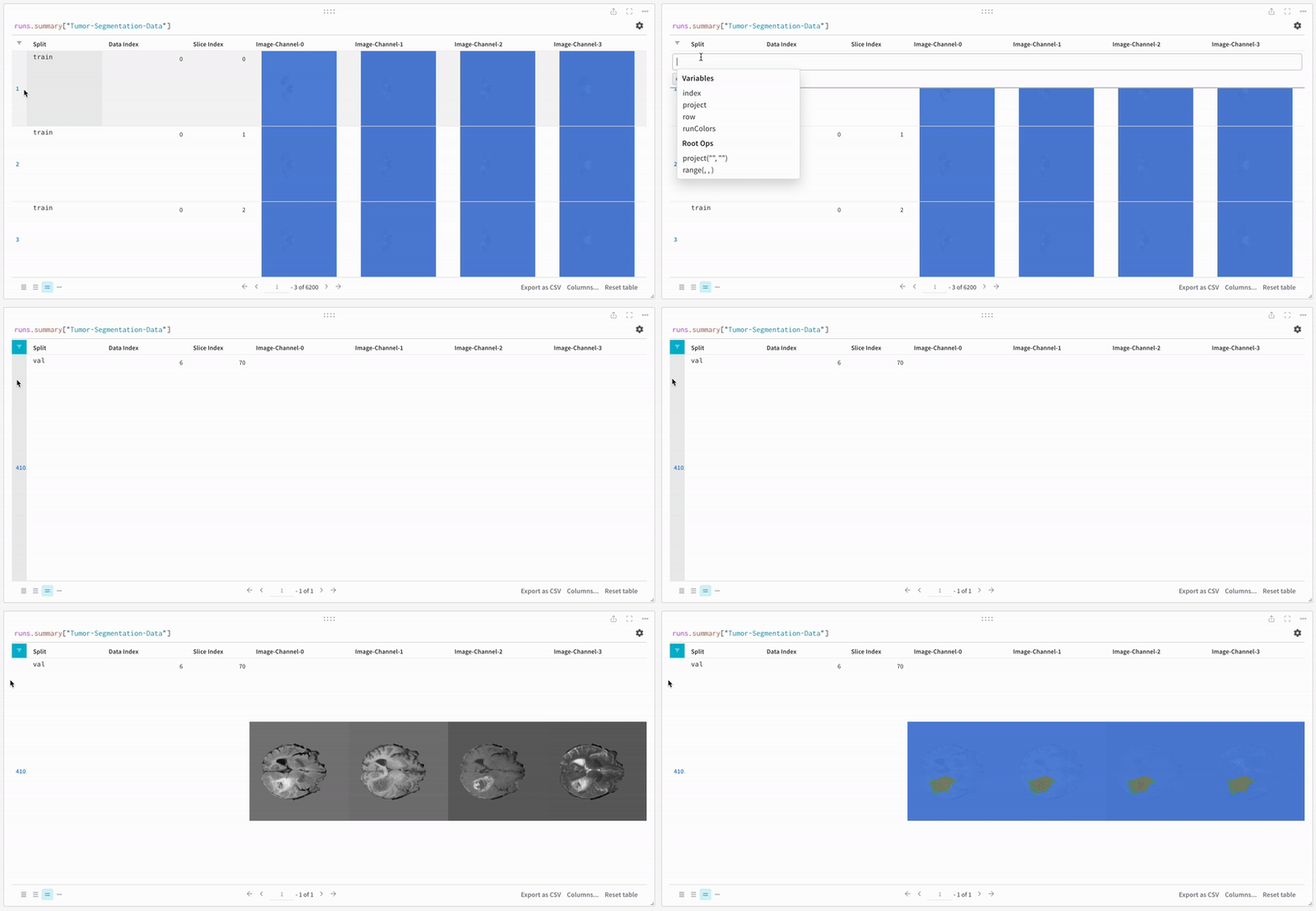
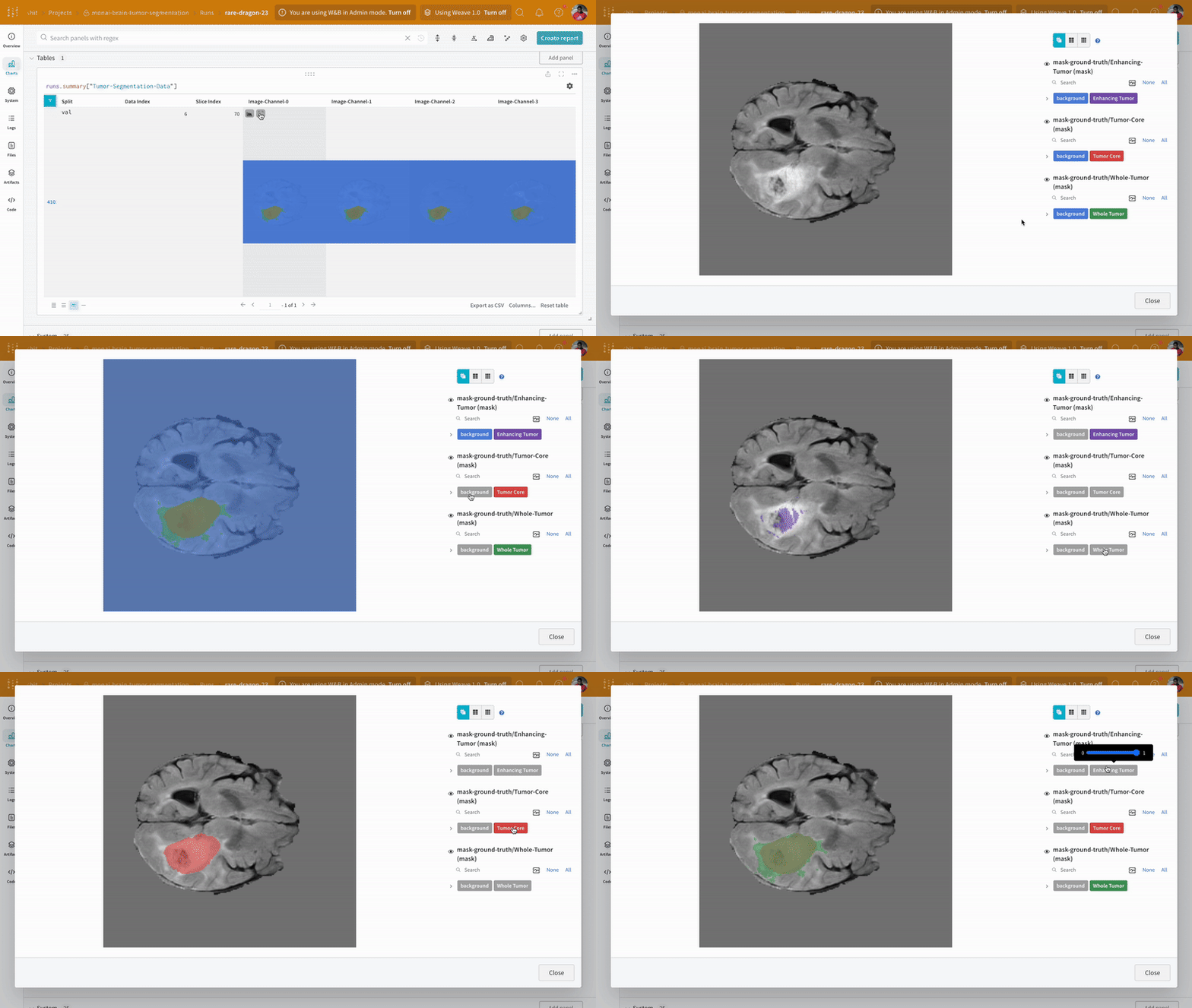
The data appears on the W\&B dashboard in an interactive tabular format. We can see each channel of a particular slice from a data volume overlaid with the respective segmentation mask in each row. You can write [Weave queries](/weave) to filter the data on the table and focus on one particular row.
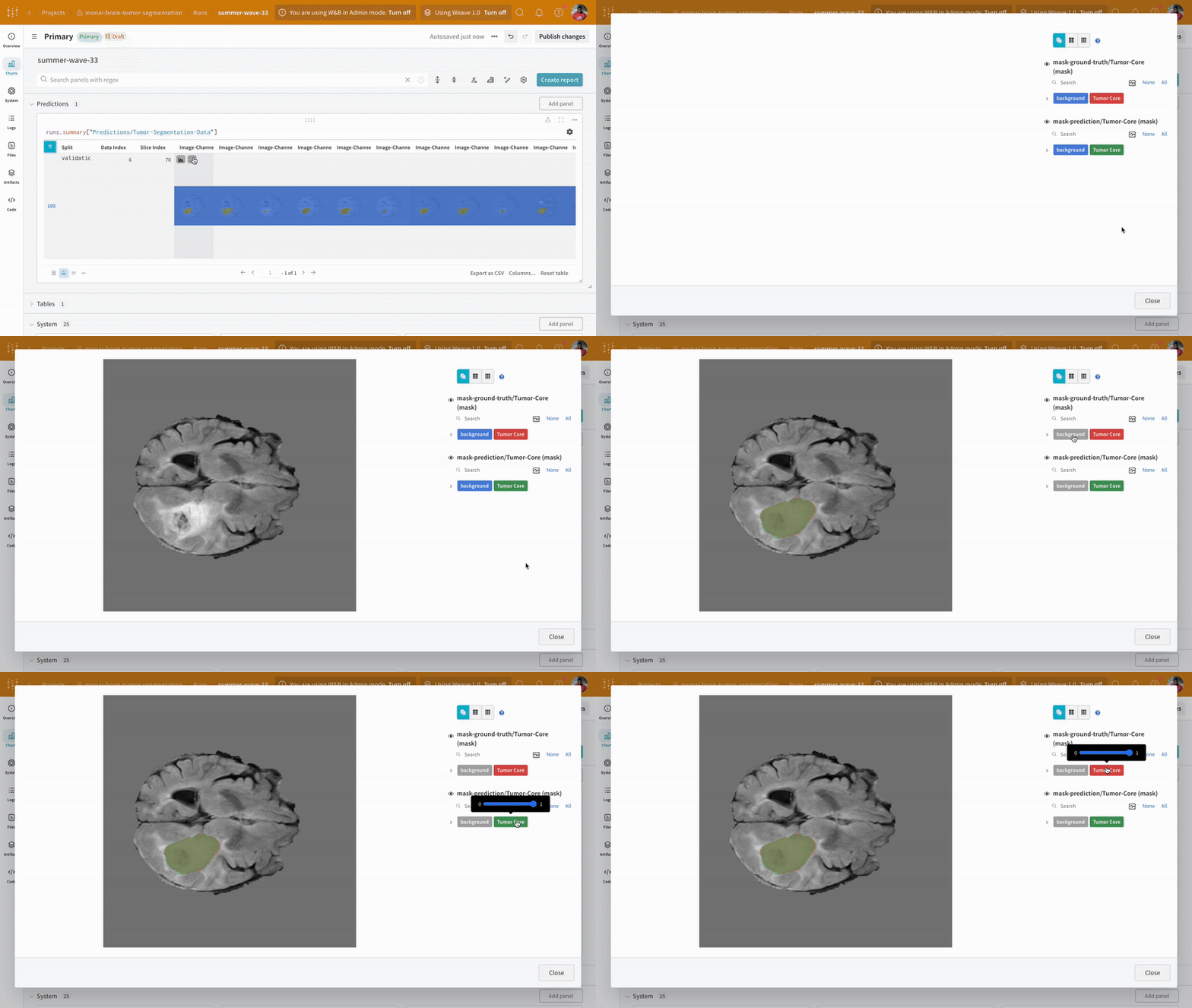
Open an image and see how you can interact with each of the segmentation masks using the interactive overlay.
**Note:** The labels in the dataset consist of non-overlapping masks across classes. The overlay logs the labels as separate masks in the overlay.
### Loading the Data
Create the PyTorch DataLoaders for loading the data from the datasets. Before creating the DataLoaders, set the `transform` for `train_dataset` to `train_transform` to pre-process and transform the data for training.
```python theme={null}
# apply train_transforms to the training dataset
train_dataset.transform = train_transform
# create the train_loader
train_loader = DataLoader(
train_dataset,
batch_size=config.batch_size,
shuffle=True,
num_workers=config.num_workers,
)
# create the val_loader
val_loader = DataLoader(
val_dataset,
batch_size=config.batch_size,
shuffle=False,
num_workers=config.num_workers,
)
```
## Creating the Model, Loss, and Optimizer
This tutorial crates a `SegResNet` model based on the paper [3D MRI brain tumor segmentation using auto-encoder regularization](https://arxiv.org/pdf/1810.11654.pdf). The `SegResNet` model that comes implemented as a PyTorch Module as part of the `monai.networks` API as well as an optimizer and learning rate scheduler.
```python theme={null}
device = torch.device("cuda:0")
# create model
model = SegResNet(
blocks_down=[1, 2, 2, 4],
blocks_up=[1, 1, 1],
init_filters=16,
in_channels=4,
out_channels=3,
dropout_prob=0.2,
).to(device)
# create optimizer
optimizer = torch.optim.Adam(
model.parameters(),
config.initial_learning_rate,
weight_decay=config.weight_decay,
)
# create learning rate scheduler
lr_scheduler = torch.optim.lr_scheduler.CosineAnnealingLR(
optimizer, T_max=config.max_train_epochs
)
```
Define the loss as multi-label `DiceLoss` using the `monai.losses` API and the corresponding dice metrics using the `monai.metrics` API.
```python theme={null}
loss_function = DiceLoss(
smooth_nr=config.dice_loss_smoothen_numerator,
smooth_dr=config.dice_loss_smoothen_denominator,
squared_pred=config.dice_loss_squared_prediction,
to_onehot_y=config.dice_loss_target_onehot,
sigmoid=config.dice_loss_apply_sigmoid,
)
dice_metric = DiceMetric(include_background=True, reduction="mean")
dice_metric_batch = DiceMetric(include_background=True, reduction="mean_batch")
post_trans = Compose([Activations(sigmoid=True), AsDiscrete(threshold=0.5)])
# use automatic mixed-precision to accelerate training
scaler = torch.cuda.amp.GradScaler()
torch.backends.cudnn.benchmark = True
```
Define a small utility for mixed-precision inference. This will be useful during the validation step of the training process and when you want to run the model after training.
```python theme={null}
def inference(model, input):
def _compute(input):
return sliding_window_inference(
inputs=input,
roi_size=(240, 240, 160),
sw_batch_size=1,
predictor=model,
overlap=0.5,
)
with torch.cuda.amp.autocast():
return _compute(input)
```
## Training and Validation
Before training, define the metric properties which will later be logged with `run.log()` for tracking the training and validation experiments.
```python theme={null}
run.define_metric("epoch/epoch_step")
run.define_metric("epoch/*", step_metric="epoch/epoch_step")
run.define_metric("batch/batch_step")
run.define_metric("batch/*", step_metric="batch/batch_step")
run.define_metric("validation/validation_step")
run.define_metric("validation/*", step_metric="validation/validation_step")
batch_step = 0
validation_step = 0
metric_values = []
metric_values_tumor_core = []
metric_values_whole_tumor = []
metric_values_enhanced_tumor = []
```
### Execute Standard PyTorch Training Loop
```python theme={null}
with wandb.init(
project="monai-brain-tumor-segmentation",
config=config,
job_type="train",
reinit=True,
) as run:
# Define a W&B Artifact object
artifact = wandb.Artifact(
name=f"{run.id}-checkpoint", type="model"
)
epoch_progress_bar = tqdm(range(config.max_train_epochs), desc="Training:")
for epoch in epoch_progress_bar:
model.train()
epoch_loss = 0
total_batch_steps = len(train_dataset) // train_loader.batch_size
batch_progress_bar = tqdm(train_loader, total=total_batch_steps, leave=False)
# Training Step
for batch_data in batch_progress_bar:
inputs, labels = (
batch_data["image"].to(device),
batch_data["label"].to(device),
)
optimizer.zero_grad()
with torch.cuda.amp.autocast():
outputs = model(inputs)
loss = loss_function(outputs, labels)
scaler.scale(loss).backward()
scaler.step(optimizer)
scaler.update()
epoch_loss += loss.item()
batch_progress_bar.set_description(f"train_loss: {loss.item():.4f}:")
## Log batch-wise training loss to W&B
run.log({"batch/batch_step": batch_step, "batch/train_loss": loss.item()})
batch_step += 1
lr_scheduler.step()
epoch_loss /= total_batch_steps
## Log batch-wise training loss and learning rate to W&B
run.log(
{
"epoch/epoch_step": epoch,
"epoch/mean_train_loss": epoch_loss,
"epoch/learning_rate": lr_scheduler.get_last_lr()[0],
}
)
epoch_progress_bar.set_description(f"Training: train_loss: {epoch_loss:.4f}:")
# Validation and model checkpointing step
if (epoch + 1) % config.validation_intervals == 0:
model.eval()
with torch.no_grad():
for val_data in val_loader:
val_inputs, val_labels = (
val_data["image"].to(device),
val_data["label"].to(device),
)
val_outputs = inference(model, val_inputs)
val_outputs = [post_trans(i) for i in decollate_batch(val_outputs)]
dice_metric(y_pred=val_outputs, y=val_labels)
dice_metric_batch(y_pred=val_outputs, y=val_labels)
metric_values.append(dice_metric.aggregate().item())
metric_batch = dice_metric_batch.aggregate()
metric_values_tumor_core.append(metric_batch[0].item())
metric_values_whole_tumor.append(metric_batch[1].item())
metric_values_enhanced_tumor.append(metric_batch[2].item())
dice_metric.reset()
dice_metric_batch.reset()
checkpoint_path = os.path.join(config.checkpoint_dir, "model.pth")
torch.save(model.state_dict(), checkpoint_path)
# Log and versison model checkpoints using W&B artifacts.
artifact.add_file(local_path=checkpoint_path)
run.log_artifact(artifact, aliases=[f"epoch_{epoch}"])
# Log validation metrics to W&B dashboard.
run.log(
{
"validation/validation_step": validation_step,
"validation/mean_dice": metric_values[-1],
"validation/mean_dice_tumor_core": metric_values_tumor_core[-1],
"validation/mean_dice_whole_tumor": metric_values_whole_tumor[-1],
"validation/mean_dice_enhanced_tumor": metric_values_enhanced_tumor[-1],
}
)
validation_step += 1
# Wait for this artifact to finish logging
artifact.wait()
```
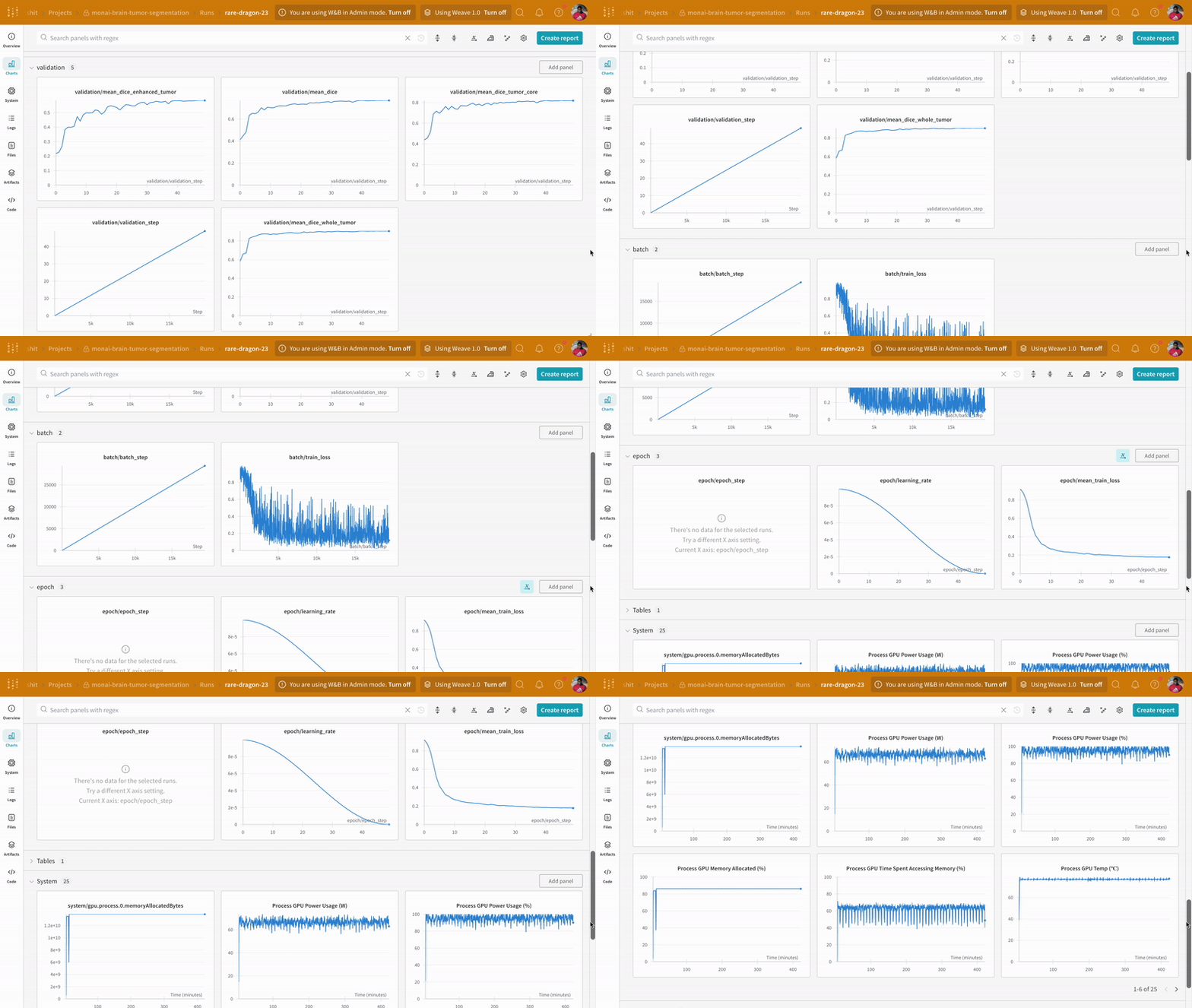
Instrumenting the code with `wandb.log` not only enables tracking all metrics associated with the training and validation process, but also logs all system metrics (our CPU and GPU in this case) on the W\&B dashboard.
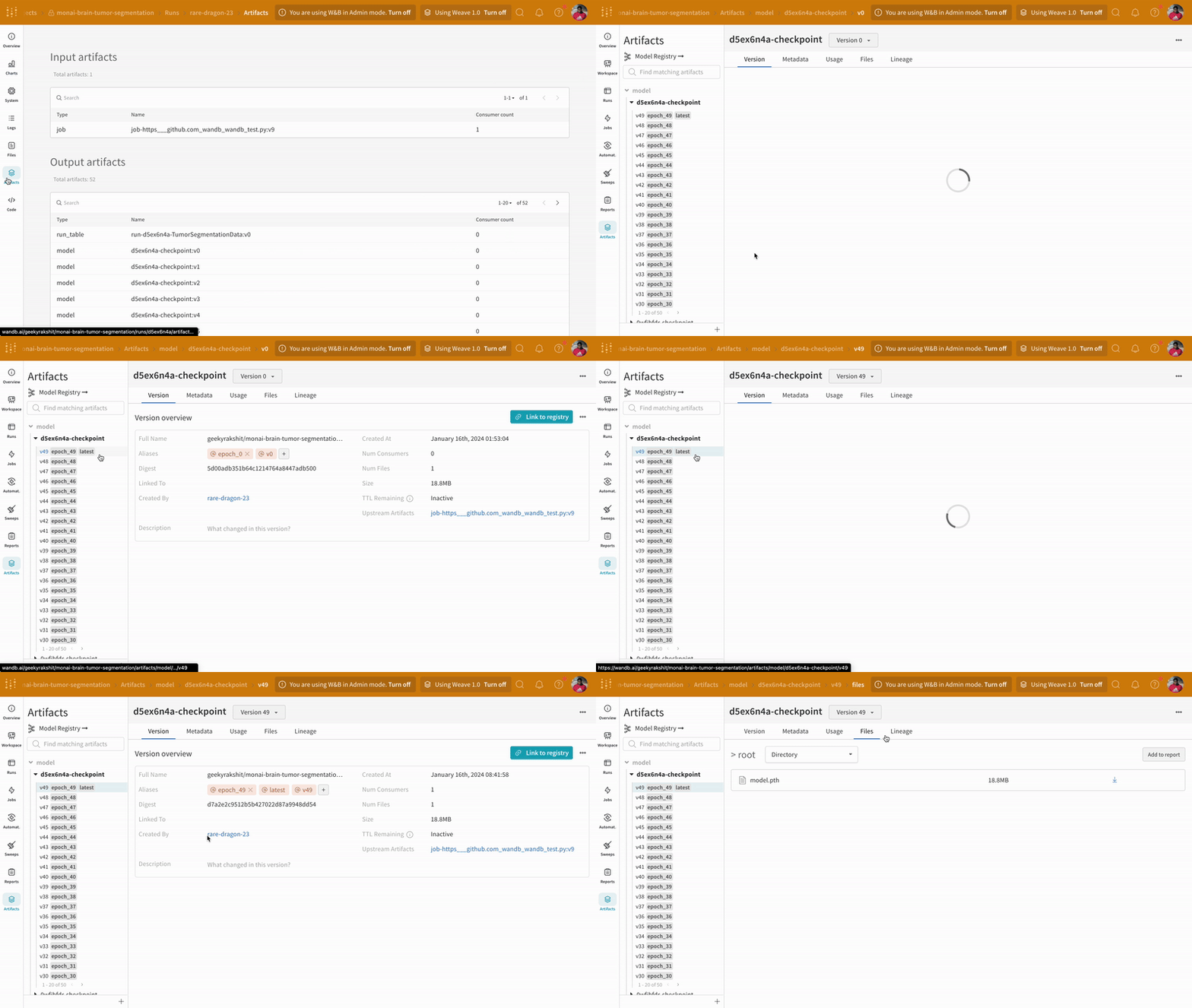
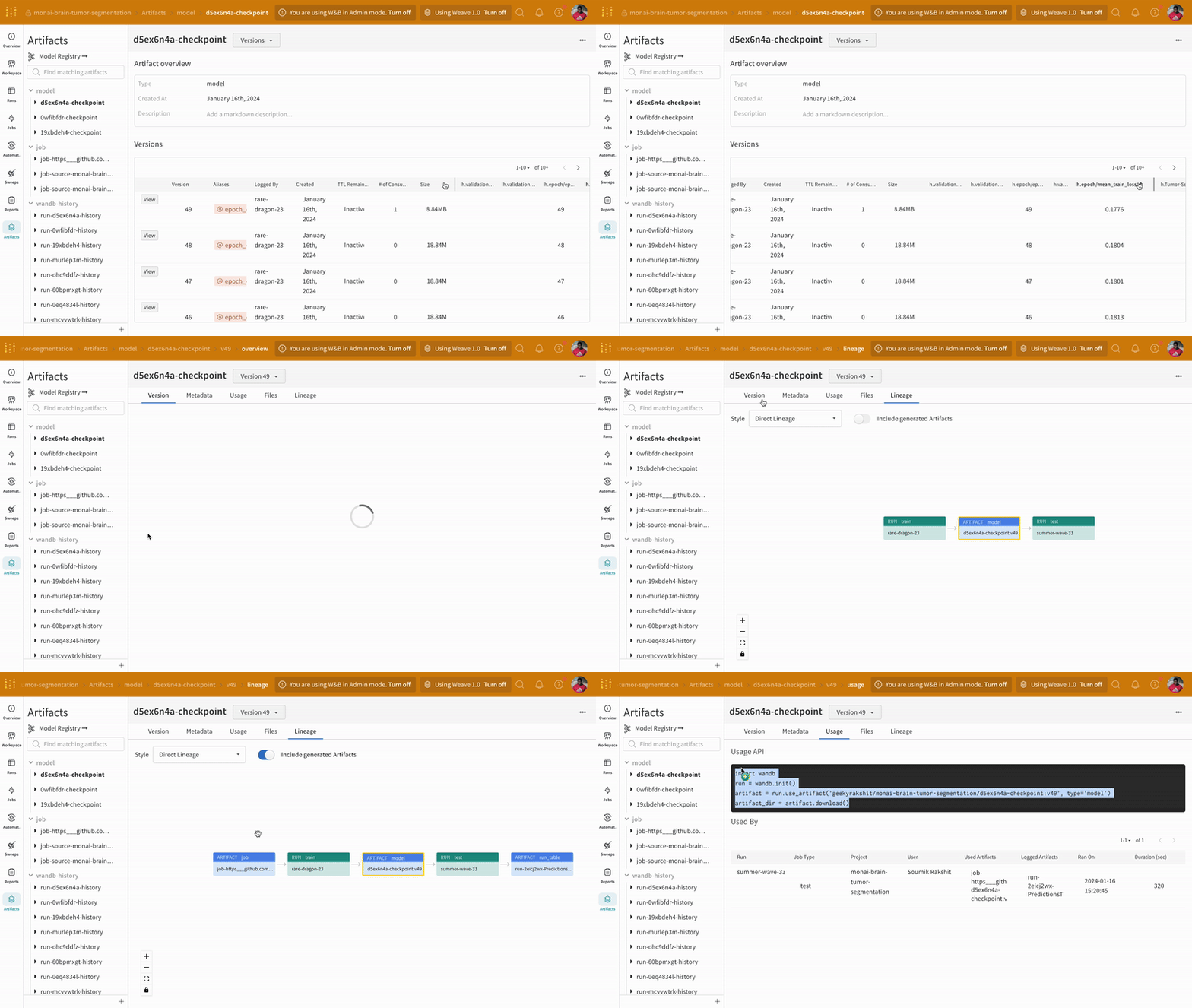
Navigate to the artifacts tab in the W\&B run dashboard to access the different versions of model checkpoint artifacts logged during training.
## Inference
Using the artifacts interface, you can select which version of the artifact is the best model checkpoint, in this case, the mean epoch-wise training loss. You can also explore the entire lineage of the artifact and use the version that you need.
Fetch the version of the model artifact with the best epoch-wise mean training loss and load the checkpoint state dictionary to the model.
```python theme={null}
run = wandb.init(
project="monai-brain-tumor-segmentation",
job_type="inference",
reinit=True,
)
model_artifact = run.use_artifact(
"geekyrakshit/monai-brain-tumor-segmentation/d5ex6n4a-checkpoint:v49",
type="model",
)
model_artifact_dir = model_artifact.download()
model.load_state_dict(torch.load(os.path.join(model_artifact_dir, "model.pth")))
model.eval()
```
### Visualizing Predictions and Comparing with the Ground Truth Labels
Create another utility function to visualize the predictions of the pre-trained model and compare them with the corresponding ground-truth segmentation mask using the interactive segmentation mask overlay,.
```python theme={null}
def log_predictions_into_tables(
sample_image: np.array,
sample_label: np.array,
predicted_label: np.array,
split: str = None,
data_idx: int = None,
table: wandb.Table = None,
):
num_channels, _, _, num_slices = sample_image.shape
with tqdm(total=num_slices, leave=False) as progress_bar:
for slice_idx in range(num_slices):
wandb_images = []
for channel_idx in range(num_channels):
wandb_images += [
wandb.Image(
sample_image[channel_idx, :, :, slice_idx],
masks={
"ground-truth/Tumor-Core": {
"mask_data": sample_label[0, :, :, slice_idx],
"class_labels": {0: "background", 1: "Tumor Core"},
},
"prediction/Tumor-Core": {
"mask_data": predicted_label[0, :, :, slice_idx] * 2,
"class_labels": {0: "background", 2: "Tumor Core"},
},
},
),
wandb.Image(
sample_image[channel_idx, :, :, slice_idx],
masks={
"ground-truth/Whole-Tumor": {
"mask_data": sample_label[1, :, :, slice_idx],
"class_labels": {0: "background", 1: "Whole Tumor"},
},
"prediction/Whole-Tumor": {
"mask_data": predicted_label[1, :, :, slice_idx] * 2,
"class_labels": {0: "background", 2: "Whole Tumor"},
},
},
),
wandb.Image(
sample_image[channel_idx, :, :, slice_idx],
masks={
"ground-truth/Enhancing-Tumor": {
"mask_data": sample_label[2, :, :, slice_idx],
"class_labels": {0: "background", 1: "Enhancing Tumor"},
},
"prediction/Enhancing-Tumor": {
"mask_data": predicted_label[2, :, :, slice_idx] * 2,
"class_labels": {0: "background", 2: "Enhancing Tumor"},
},
},
),
]
table.add_data(split, data_idx, slice_idx, *wandb_images)
progress_bar.update(1)
return table
```
Log the prediction results to the prediction table.
```python theme={null}
run = wandb.init(
project="monai-brain-tumor-segmentation",
job_type="inference",
reinit=True,
)
# create the prediction table
prediction_table = wandb.Table(
columns=[
"Split",
"Data Index",
"Slice Index",
"Image-Channel-0/Tumor-Core",
"Image-Channel-1/Tumor-Core",
"Image-Channel-2/Tumor-Core",
"Image-Channel-3/Tumor-Core",
"Image-Channel-0/Whole-Tumor",
"Image-Channel-1/Whole-Tumor",
"Image-Channel-2/Whole-Tumor",
"Image-Channel-3/Whole-Tumor",
"Image-Channel-0/Enhancing-Tumor",
"Image-Channel-1/Enhancing-Tumor",
"Image-Channel-2/Enhancing-Tumor",
"Image-Channel-3/Enhancing-Tumor",
]
)
# Perform inference and visualization
with torch.no_grad():
config.max_prediction_images_visualized
max_samples = (
min(config.max_prediction_images_visualized, len(val_dataset))
if config.max_prediction_images_visualized > 0
else len(val_dataset)
)
progress_bar = tqdm(
enumerate(val_dataset[:max_samples]),
total=max_samples,
desc="Generating Predictions:",
)
for data_idx, sample in progress_bar:
val_input = sample["image"].unsqueeze(0).to(device)
val_output = inference(model, val_input)
val_output = post_trans(val_output[0])
prediction_table = log_predictions_into_tables(
sample_image=sample["image"].cpu().numpy(),
sample_label=sample["label"].cpu().numpy(),
predicted_label=val_output.cpu().numpy(),
data_idx=data_idx,
split="validation",
table=prediction_table,
)
run.log({"Predictions/Tumor-Segmentation-Data": prediction_table})
# End the experiment
run.finish()
```
Use the interactive segmentation mask overlay to analyze and compare the predicted segmentation masks and the ground-truth labels for each class.
## Acknowledgements and more resources
* [MONAI Tutorial: Brain tumor 3D segmentation with MONAI](https://github.com/Project-MONAI/tutorials/blob/main/3d_segmentation/brats_segmentation_3d.ipynb)
* [WandB Report: Brain Tumor Segmentation using MONAI and WandB](https://wandb.ai/geekyrakshit/brain-tumor-segmentation/reports/Brain-Tumor-Segmentation-using-MONAI-and-WandB---Vmlldzo0MjUzODIw)
 Open an image and see how you can interact with each of the segmentation masks using the interactive overlay.
 Navigate to the artifacts tab in the W\&B run dashboard to access the different versions of model checkpoint artifacts logged during training.
 ## Inference
Using the artifacts interface, you can select which version of the artifact is the best model checkpoint, in this case, the mean epoch-wise training loss. You can also explore the entire lineage of the artifact and use the version that you need.
## Inference
Using the artifacts interface, you can select which version of the artifact is the best model checkpoint, in this case, the mean epoch-wise training loss. You can also explore the entire lineage of the artifact and use the version that you need.
 Fetch the version of the model artifact with the best epoch-wise mean training loss and load the checkpoint state dictionary to the model.
```python theme={null}
run = wandb.init(
project="monai-brain-tumor-segmentation",
job_type="inference",
reinit=True,
)
model_artifact = run.use_artifact(
"geekyrakshit/monai-brain-tumor-segmentation/d5ex6n4a-checkpoint:v49",
type="model",
)
model_artifact_dir = model_artifact.download()
model.load_state_dict(torch.load(os.path.join(model_artifact_dir, "model.pth")))
model.eval()
```
### Visualizing Predictions and Comparing with the Ground Truth Labels
Create another utility function to visualize the predictions of the pre-trained model and compare them with the corresponding ground-truth segmentation mask using the interactive segmentation mask overlay,.
```python theme={null}
def log_predictions_into_tables(
sample_image: np.array,
sample_label: np.array,
predicted_label: np.array,
split: str = None,
data_idx: int = None,
table: wandb.Table = None,
):
num_channels, _, _, num_slices = sample_image.shape
with tqdm(total=num_slices, leave=False) as progress_bar:
for slice_idx in range(num_slices):
wandb_images = []
for channel_idx in range(num_channels):
wandb_images += [
wandb.Image(
sample_image[channel_idx, :, :, slice_idx],
masks={
"ground-truth/Tumor-Core": {
"mask_data": sample_label[0, :, :, slice_idx],
"class_labels": {0: "background", 1: "Tumor Core"},
},
"prediction/Tumor-Core": {
"mask_data": predicted_label[0, :, :, slice_idx] * 2,
"class_labels": {0: "background", 2: "Tumor Core"},
},
},
),
wandb.Image(
sample_image[channel_idx, :, :, slice_idx],
masks={
"ground-truth/Whole-Tumor": {
"mask_data": sample_label[1, :, :, slice_idx],
"class_labels": {0: "background", 1: "Whole Tumor"},
},
"prediction/Whole-Tumor": {
"mask_data": predicted_label[1, :, :, slice_idx] * 2,
"class_labels": {0: "background", 2: "Whole Tumor"},
},
},
),
wandb.Image(
sample_image[channel_idx, :, :, slice_idx],
masks={
"ground-truth/Enhancing-Tumor": {
"mask_data": sample_label[2, :, :, slice_idx],
"class_labels": {0: "background", 1: "Enhancing Tumor"},
},
"prediction/Enhancing-Tumor": {
"mask_data": predicted_label[2, :, :, slice_idx] * 2,
"class_labels": {0: "background", 2: "Enhancing Tumor"},
},
},
),
]
table.add_data(split, data_idx, slice_idx, *wandb_images)
progress_bar.update(1)
return table
```
Log the prediction results to the prediction table.
```python theme={null}
run = wandb.init(
project="monai-brain-tumor-segmentation",
job_type="inference",
reinit=True,
)
# create the prediction table
prediction_table = wandb.Table(
columns=[
"Split",
"Data Index",
"Slice Index",
"Image-Channel-0/Tumor-Core",
"Image-Channel-1/Tumor-Core",
"Image-Channel-2/Tumor-Core",
"Image-Channel-3/Tumor-Core",
"Image-Channel-0/Whole-Tumor",
"Image-Channel-1/Whole-Tumor",
"Image-Channel-2/Whole-Tumor",
"Image-Channel-3/Whole-Tumor",
"Image-Channel-0/Enhancing-Tumor",
"Image-Channel-1/Enhancing-Tumor",
"Image-Channel-2/Enhancing-Tumor",
"Image-Channel-3/Enhancing-Tumor",
]
)
# Perform inference and visualization
with torch.no_grad():
config.max_prediction_images_visualized
max_samples = (
min(config.max_prediction_images_visualized, len(val_dataset))
if config.max_prediction_images_visualized > 0
else len(val_dataset)
)
progress_bar = tqdm(
enumerate(val_dataset[:max_samples]),
total=max_samples,
desc="Generating Predictions:",
)
for data_idx, sample in progress_bar:
val_input = sample["image"].unsqueeze(0).to(device)
val_output = inference(model, val_input)
val_output = post_trans(val_output[0])
prediction_table = log_predictions_into_tables(
sample_image=sample["image"].cpu().numpy(),
sample_label=sample["label"].cpu().numpy(),
predicted_label=val_output.cpu().numpy(),
data_idx=data_idx,
split="validation",
table=prediction_table,
)
run.log({"Predictions/Tumor-Segmentation-Data": prediction_table})
# End the experiment
run.finish()
```
Use the interactive segmentation mask overlay to analyze and compare the predicted segmentation masks and the ground-truth labels for each class.
Fetch the version of the model artifact with the best epoch-wise mean training loss and load the checkpoint state dictionary to the model.
```python theme={null}
run = wandb.init(
project="monai-brain-tumor-segmentation",
job_type="inference",
reinit=True,
)
model_artifact = run.use_artifact(
"geekyrakshit/monai-brain-tumor-segmentation/d5ex6n4a-checkpoint:v49",
type="model",
)
model_artifact_dir = model_artifact.download()
model.load_state_dict(torch.load(os.path.join(model_artifact_dir, "model.pth")))
model.eval()
```
### Visualizing Predictions and Comparing with the Ground Truth Labels
Create another utility function to visualize the predictions of the pre-trained model and compare them with the corresponding ground-truth segmentation mask using the interactive segmentation mask overlay,.
```python theme={null}
def log_predictions_into_tables(
sample_image: np.array,
sample_label: np.array,
predicted_label: np.array,
split: str = None,
data_idx: int = None,
table: wandb.Table = None,
):
num_channels, _, _, num_slices = sample_image.shape
with tqdm(total=num_slices, leave=False) as progress_bar:
for slice_idx in range(num_slices):
wandb_images = []
for channel_idx in range(num_channels):
wandb_images += [
wandb.Image(
sample_image[channel_idx, :, :, slice_idx],
masks={
"ground-truth/Tumor-Core": {
"mask_data": sample_label[0, :, :, slice_idx],
"class_labels": {0: "background", 1: "Tumor Core"},
},
"prediction/Tumor-Core": {
"mask_data": predicted_label[0, :, :, slice_idx] * 2,
"class_labels": {0: "background", 2: "Tumor Core"},
},
},
),
wandb.Image(
sample_image[channel_idx, :, :, slice_idx],
masks={
"ground-truth/Whole-Tumor": {
"mask_data": sample_label[1, :, :, slice_idx],
"class_labels": {0: "background", 1: "Whole Tumor"},
},
"prediction/Whole-Tumor": {
"mask_data": predicted_label[1, :, :, slice_idx] * 2,
"class_labels": {0: "background", 2: "Whole Tumor"},
},
},
),
wandb.Image(
sample_image[channel_idx, :, :, slice_idx],
masks={
"ground-truth/Enhancing-Tumor": {
"mask_data": sample_label[2, :, :, slice_idx],
"class_labels": {0: "background", 1: "Enhancing Tumor"},
},
"prediction/Enhancing-Tumor": {
"mask_data": predicted_label[2, :, :, slice_idx] * 2,
"class_labels": {0: "background", 2: "Enhancing Tumor"},
},
},
),
]
table.add_data(split, data_idx, slice_idx, *wandb_images)
progress_bar.update(1)
return table
```
Log the prediction results to the prediction table.
```python theme={null}
run = wandb.init(
project="monai-brain-tumor-segmentation",
job_type="inference",
reinit=True,
)
# create the prediction table
prediction_table = wandb.Table(
columns=[
"Split",
"Data Index",
"Slice Index",
"Image-Channel-0/Tumor-Core",
"Image-Channel-1/Tumor-Core",
"Image-Channel-2/Tumor-Core",
"Image-Channel-3/Tumor-Core",
"Image-Channel-0/Whole-Tumor",
"Image-Channel-1/Whole-Tumor",
"Image-Channel-2/Whole-Tumor",
"Image-Channel-3/Whole-Tumor",
"Image-Channel-0/Enhancing-Tumor",
"Image-Channel-1/Enhancing-Tumor",
"Image-Channel-2/Enhancing-Tumor",
"Image-Channel-3/Enhancing-Tumor",
]
)
# Perform inference and visualization
with torch.no_grad():
config.max_prediction_images_visualized
max_samples = (
min(config.max_prediction_images_visualized, len(val_dataset))
if config.max_prediction_images_visualized > 0
else len(val_dataset)
)
progress_bar = tqdm(
enumerate(val_dataset[:max_samples]),
total=max_samples,
desc="Generating Predictions:",
)
for data_idx, sample in progress_bar:
val_input = sample["image"].unsqueeze(0).to(device)
val_output = inference(model, val_input)
val_output = post_trans(val_output[0])
prediction_table = log_predictions_into_tables(
sample_image=sample["image"].cpu().numpy(),
sample_label=sample["label"].cpu().numpy(),
predicted_label=val_output.cpu().numpy(),
data_idx=data_idx,
split="validation",
table=prediction_table,
)
run.log({"Predictions/Tumor-Segmentation-Data": prediction_table})
# End the experiment
run.finish()
```
Use the interactive segmentation mask overlay to analyze and compare the predicted segmentation masks and the ground-truth labels for each class.
 ## Acknowledgements and more resources
* [MONAI Tutorial: Brain tumor 3D segmentation with MONAI](https://github.com/Project-MONAI/tutorials/blob/main/3d_segmentation/brats_segmentation_3d.ipynb)
* [WandB Report: Brain Tumor Segmentation using MONAI and WandB](https://wandb.ai/geekyrakshit/brain-tumor-segmentation/reports/Brain-Tumor-Segmentation-using-MONAI-and-WandB---Vmlldzo0MjUzODIw)
## Acknowledgements and more resources
* [MONAI Tutorial: Brain tumor 3D segmentation with MONAI](https://github.com/Project-MONAI/tutorials/blob/main/3d_segmentation/brats_segmentation_3d.ipynb)
* [WandB Report: Brain Tumor Segmentation using MONAI and WandB](https://wandb.ai/geekyrakshit/brain-tumor-segmentation/reports/Brain-Tumor-Segmentation-using-MONAI-and-WandB---Vmlldzo0MjUzODIw)