mysql:
ingress:
annotations:
```
4. Start the Operator with your custom configuration so that it can install, configure, and manage the W\&B Server application:
```shell theme={null}
kubectl apply -f operator.yaml
```
Wait until the deployment completes. This takes a few minutes.
5. To verify the installation using the web UI, create the first admin user account, then follow the verification steps outlined in [Verify the installation](#verify-the-installation).
### Deploy W\&B with Helm Terraform Module
This method allows for customized deployments tailored to specific requirements, leveraging Terraform's infrastructure-as-code approach for consistency and repeatability. The official W\&B Helm-based Terraform Module is located [here](https://registry.terraform.iohttps://github.com/wandb/helm-charts/tree/main/charts/operator-wandb).
The following code can be used as a starting point and includes all necessary configuration options for a production grade deployment.
```hcl theme={null}
module "wandb" {
source = "wandb/wandb/helm"
spec = {
values = {
global = {
host = "https://"
license = "eyJhbGnUzaH...j9ZieKQ2x5GGfw"
bucket = {
}
mysql = {
}
}
ingress = {
annotations = {
"a" = "b"
"x" = "y"
}
}
}
}
}
```
Note that the configuration options are the same as described in [Configuration Reference](#configuration-reference-for-wb-operator), but that the syntax has to follow the HashiCorp Configuration Language (HCL). The Terraform module creates the W\&B custom resource definition (CRD).
To see how W\&B\&Biases themselves use the Helm Terraform module to deploy “Dedicated Cloud” installations for customers, follow those links:
* [AWS](https://github.com/wandb/terraform-aws-wandb/blob/45e1d746f53e78e73e68f911a1f8cad5408e74b6/main.tf#L225)
* [Azure](https://github.com/wandb/terraform-azurerm-wandb/blob/170e03136b6b6fc758102d59dacda99768854045/main.tf#L155)
* [Google Cloud](https://github.com/wandb/terraform-google-wandb/blob/49ddc3383df4cefc04337a2ae784f57ce2a2c699/main.tf#L189)
### Deploy W\&B with W\&B Cloud Terraform modules
W\&B provides a set of Terraform Modules for AWS, Google Cloud and Azure. Those modules deploy entire infrastructures including Kubernetes clusters, load balancers, MySQL databases and so on as well as the W\&B Server application. The W\&B Kubernetes Operator is already pre-baked with those official W\&B cloud-specific Terraform Modules with the following versions:
| Terraform Registry | Source Code | Version |
| ------------------------------------------------------------------- | ---------------------------------------------------------------------------------------------------- | ------- |
| [AWS](https://registry.terraform.io/modules/wandb/wandb/aws/latest) | [https://github.com/wandb/terraform-aws-wandb](https://github.com/wandb/terraform-aws-wandb) | v4.0.0+ |
| [Azure](https://github.com/wandb/terraform-azurerm-wandb) | [https://github.com/wandb/terraform-azurerm-wandb](https://github.com/wandb/terraform-azurerm-wandb) | v2.0.0+ |
| [Google Cloud](https://github.com/wandb/terraform-google-wandb) | [https://github.com/wandb/terraform-google-wandb](https://github.com/wandb/terraform-google-wandb) | v2.0.0+ |
This integration ensures that W\&B Kubernetes Operator is ready to use for your instance with minimal setup, providing a streamlined path to deploying and managing W\&B Server in your cloud environment.
For a detailed description on how to use these modules, refer to the [Self-Managed installations section](/platform/hosting/hosting-options/self-managed#deploy-wb-server-within-self-managed-cloud-accounts) in the docs.
### Verify the installation
To verify the installation, W\&B recommends using the [W\&B CLI](/models/ref/cli/). The verify command executes several tests that verify all components and configurations.
This step assumes that the first admin user account is created with the browser.
Follow these steps to verify the installation:
1. Install the W\&B CLI:
```shell theme={null}
pip install wandb
```
2. Log in to W\&B:
```shell theme={null}
wandb login --host=https://YOUR_DNS_DOMAIN
```
For example:
```shell theme={null}
wandb login --host=https://wandb.company-name.com
```
3. Verify the installation:
```shell theme={null}
wandb verify
```
A successful installation and fully working W\&B deployment shows the following output:
```console theme={null}
Default host selected: https://wandb.company-name.com
Find detailed logs for this test at: /var/folders/pn/b3g3gnc11_sbsykqkm3tx5rh0000gp/T/tmpdtdjbxua/wandb
Checking if logged in...................................................✅
Checking signed URL upload..............................................✅
Checking ability to send large payloads through proxy...................✅
Checking requests to base url...........................................✅
Checking requests made over signed URLs.................................✅
Checking CORs configuration of the bucket...............................✅
Checking wandb package version is up to date............................✅
Checking logged metrics, saving and downloading a file..................✅
Checking artifact save and download workflows...........................✅
```
## Access the W\&B Management Console
The W\&B Kubernetes operator comes with a management console. It is located at `${HOST_URI}/console`, for example `https://wandb.company-name.com/console`.
There are two ways to log in to the management console:
1. Open the W\&B application in the browser and login. Log in to the W\&B application with `${HOST_URI}/`, for example `https://wandb.company-name.com/`
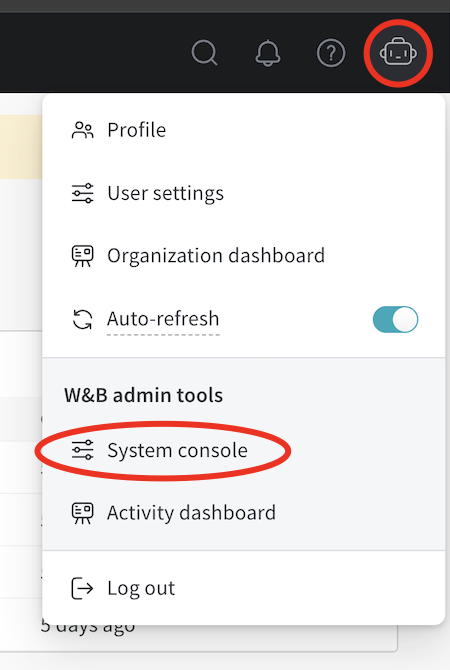
2. Access the console. Click on the icon in the top right corner and then click **System console**. Only users with admin privileges can see the **System console** entry.
W\&B recommends you access the console using the following steps only if Option 1 does not work.
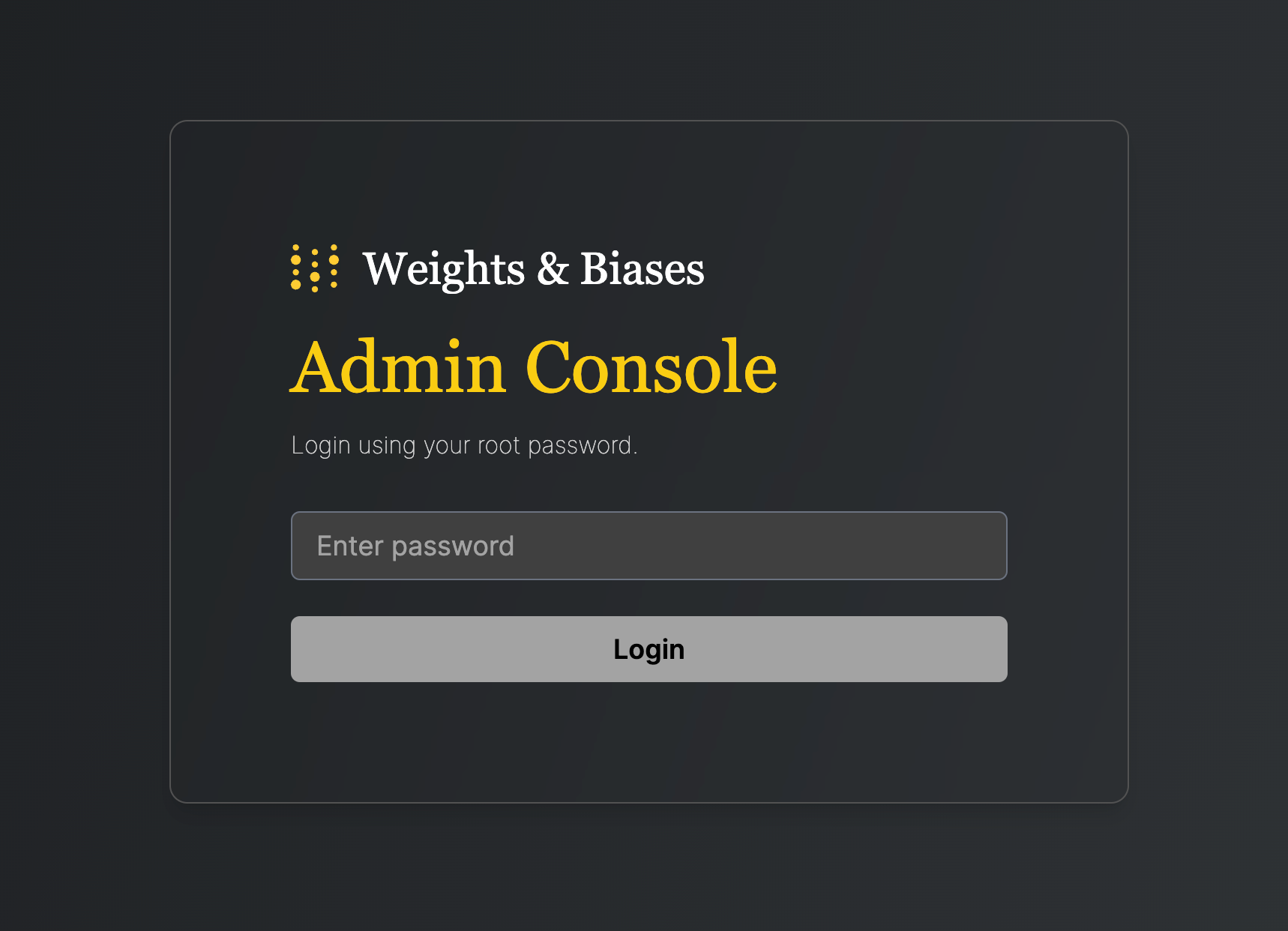
1. Open console application in browser. Open the above described URL, which redirects you to the login screen:
 2. Retrieve the password from the Kubernetes secret that the installation generates:
```shell theme={null}
kubectl get secret wandb-password -o jsonpath='{.data.password}' | base64 -d
```
Copy the password.
3. Login to the console. Paste the copied password, then click **Login**.
2. Retrieve the password from the Kubernetes secret that the installation generates:
```shell theme={null}
kubectl get secret wandb-password -o jsonpath='{.data.password}' | base64 -d
```
Copy the password.
3. Login to the console. Paste the copied password, then click **Login**.
## Update the W\&B Kubernetes operator
This section describes how to update the W\&B Kubernetes operator.
* Updating the W\&B Kubernetes operator does not update the W\&B server application.
* See the instructions [here](#migrate-Self-Managed-instances-to-wb-operator) if you use a Helm chart that does not user the W\&B Kubernetes operator before you follow the proceeding instructions to update the W\&B operator.
Copy and paste the code snippets below into your terminal.
1. First, update the repo with [`helm repo update`](https://helm.sh/docs/helm/helm_repo_update/):
```shell theme={null}
helm repo update
```
2. Next, update the Helm chart with [`helm upgrade`](https://helm.sh/docs/helm/helm_upgrade/):
```shell theme={null}
helm upgrade operator wandb/operator -n wandb-cr --reuse-values
```
## Update the W\&B Server application
You no longer need to update W\&B Server application if you use the W\&B Kubernetes operator.
The operator automatically updates your W\&B Server application when a new version of the software of W\&B is released.
## Migrate Self-Managed instances to W\&B Operator
The proceeding section describe how to migrate from self-managing your own W\&B Server installation to using the W\&B Operator to do this for you. The migration process depends on how you installed W\&B Server:
The W\&B Operator is the default and recommended installation method for W\&B Server. Reach out to [Customer Support](mailto:support@wandb.com) or your W\&B team if you have any questions.
* If you used the official W\&B Cloud Terraform Modules, navigate to the appropriate documentation and follow the steps there:
* [AWS](#migrate-to-operator-based-aws-terraform-modules)
* [Google Cloud](#migrate-to-operator-based-google-cloud-terraform-modules)
* [Azure](#migrate-to-operator-based-azure-terraform-modules)
* If you used the [W\&B Non-Operator Helm chart](https://github.com/wandb/helm-charts/tree/main/charts/wandb), continue [here](#migrate-to-operator-based-helm-chart).
* If you used the [W\&B Non-Operator Helm chart with Terraform](https://registry.terraform.io/modules/wandb/wandb/kubernetes/latest), continue [here](#migrate-to-operator-based-terraform-helm-chart).
* If you created the Kubernetes resources with manifests, continue [here](#migrate-to-operator-based-helm-chart).
### Migrate to Operator-based AWS Terraform Modules
For a detailed description of the migration process, continue [here](https://github.com/wandb/helm-charts/tree/main/charts/operator-wandb).
### Migrate to Operator-based Google Cloud Terraform Modules
Reach out to [Customer Support](mailto:support@wandb.com) or your W\&B team if you have any questions or need assistance.
### Migrate to Operator-based Azure Terraform Modules
Reach out to [Customer Support](mailto:support@wandb.com) or your W\&B team if you have any questions or need assistance.
### Migrate to Operator-based Helm chart
Follow these steps to migrate to the Operator-based Helm chart:
1. Get the current W\&B configuration. If W\&B was deployed with an non-operator-based version of the Helm chart, export the values like this:
```shell theme={null}
helm get values wandb
```
If W\&B was deployed with Kubernetes manifests, export the values like this:
```shell theme={null}
kubectl get deployment wandb -o yaml
```
You now have all the configuration values you need for the next step.
2. Create a file called `operator.yaml`. Follow the format described in the [Configuration Reference](#configuration-reference-for-wb-operator). Use the values from step 1.
3. Scale the current deployment to 0 pods. This step is stops the current deployment.
```shell theme={null}
kubectl scale --replicas=0 deployment wandb
```
4. Update the Helm chart repo:
```shell theme={null}
helm repo update
```
5. Install the new Helm chart:
```shell theme={null}
helm upgrade --install operator wandb/operator -n wandb-cr --create-namespace
```
6. Configure the new helm chart and trigger W\&B application deployment. Apply the new configuration.
```shell theme={null}
kubectl apply -f operator.yaml
```
The deployment takes a few minutes to complete.
7. Verify the installation. Make sure that everything works by following the steps in [Verify the installation](#verify-the-installation).
8. Remove to old installation. Uninstall the old helm chart or delete the resources that were created with manifests.
### Migrate to Operator-based Terraform Helm chart
Follow these steps to migrate to the Operator-based Helm chart:
1. Prepare Terraform config. Replace the Terraform code from the old deployment in your Terraform config with the one that is described [here](#deploy-wb-with-helm-terraform-module). Set the same variables as before. Do not change .tfvars file if you have one.
2. Execute Terraform run. Execute terraform init, plan and apply
3. Verify the installation. Make sure that everything works by following the steps in [Verify the installation](#verify-the-installation).
4. Remove to old installation. Uninstall the old helm chart or delete the resources that were created with manifests.
## Configuration Reference for W\&B Server
This section describes the configuration options for W\&B Server application. The application receives its configuration as custom resource definition named [WeightsAndBiases](#how-it-works). Some configuration options are exposed with the below configuration, some need to be set as environment variables.
The documentation has two lists of environment variables: [basic](/platform/hosting/env-vars/) and [advanced](/platform/hosting/iam/advanced_env_vars/). Only use environment variables if the configuration option that you need is not exposed using the Helm Chart.
### Basic example
This example defines the minimum set of values required for W\&B. For a more realistic production example, see [Complete example](#complete-example).
This YAML file defines the desired state of your W\&B deployment, including the version, environment variables, external resources like databases, and other necessary settings.
```yaml theme={null}
apiVersion: apps.wandb.com/v1
kind: WeightsAndBiases
metadata:
labels:
app.kubernetes.io/name: weightsandbiases
app.kubernetes.io/instance: wandb
name: wandb
namespace: default
spec:
values:
global:
host: https://
license: eyJhbGnUzaH...j9ZieKQ2x5GGfw
bucket:
2. Retrieve the password from the Kubernetes secret that the installation generates:
```shell theme={null}
kubectl get secret wandb-password -o jsonpath='{.data.password}' | base64 -d
```
Copy the password.
3. Login to the console. Paste the copied password, then click **Login**.
mysql:
ingress:
annotations:
```
Find the full set of values in the [W\&B Helm repository](https://github.com/wandb/helm-charts/blob/main/charts/operator-wandb/values.yaml). **Change only those values you need to override**.
### Complete example
This example configuration deploys W\&B to Google Cloud Anthos using Google Cloud Storage:
```yaml theme={null}
apiVersion: apps.wandb.com/v1
kind: WeightsAndBiases
metadata:
labels:
app.kubernetes.io/name: weightsandbiases
app.kubernetes.io/instance: wandb
name: wandb
namespace: default
spec:
values:
global:
host: https://abc-wandb.sandbox-gcp.wandb.ml
bucket:
name: abc-wandb-moving-pipefish
provider: gcs
mysql:
database: wandb_local
host: 10.218.0.2
name: wandb_local
password: 8wtX6cJHizAZvYScjDzZcUarK4zZGjpV
port: 3306
user: wandb
license: eyJhbGnUzaHgyQjQyQWhEU3...ZieKQ2x5GGfw
ingress:
annotations:
ingress.gcp.kubernetes.io/pre-shared-cert: abc-wandb-cert-creative-puma
kubernetes.io/ingress.class: gce
kubernetes.io/ingress.global-static-ip-name: abc-wandb-operator-address
```
### Host
```yaml theme={null}
# Provide the FQDN with protocol
global:
# example host name, replace with your own
host: https://wandb.example.com
```
### Object storage (bucket)
**AWS**
```yaml theme={null}
global:
bucket:
provider: "s3"
name: ""
kmsKey: ""
region: ""
```
**Google Cloud**
```yaml theme={null}
global:
bucket:
provider: "gcs"
name: ""
```
**Azure**
```yaml theme={null}
global:
bucket:
provider: "az"
name: ""
secretKey: ""
```
**Other providers (Minio, Ceph, etc.)**
For other S3 compatible providers, set the bucket configuration as follows:
```yaml theme={null}
global:
bucket:
# Example values, replace with your own
provider: s3
name: storage.example.com
kmsKey: null
path: wandb
region: default
accessKey: 5WOA500...P5DK7I
secretKey: HDKYe4Q...JAp1YyjysnX
```
For S3-compatible storage hosted outside of AWS, `kmsKey` must be `null`.
To reference `accessKey` and `secretKey` from a secret:
```yaml theme={null}
global:
bucket:
# Example values, replace with your own
provider: s3
name: storage.example.com
kmsKey: null
path: wandb
region: default
secret:
secretName: bucket-secret
accessKeyName: ACCESS_KEY
secretKeyName: SECRET_KEY
```
### MySQL
```yaml theme={null}
global:
mysql:
# Example values, replace with your own
host: db.example.com
port: 3306
database: wandb_local
user: wandb
password: 8wtX6cJH...ZcUarK4zZGjpV
```
To reference the `password` from a secret:
```yaml theme={null}
global:
mysql:
# Example values, replace with your own
host: db.example.com
port: 3306
database: wandb_local
user: wandb
passwordSecret:
name: database-secret
passwordKey: MYSQL_WANDB_PASSWORD
```
### License
```yaml theme={null}
global:
# Example license, replace with your own
license: eyJhbGnUzaHgyQjQy...VFnPS_KETXg1hi
```
To reference the `license` from a secret:
```yaml theme={null}
global:
licenseSecret:
name: license-secret
key: CUSTOMER_WANDB_LICENSE
```
### Ingress
To identify the ingress class, see this FAQ [entry](#how-to-identify-the-kubernetes-ingress-class).
**Without TLS**
```yaml theme={null}
global:
# IMPORTANT: Ingress is on the same level in the YAML as ‘global’ (not a child)
ingress:
class: ""
```
**With TLS**
Create a secret that contains the certificate
```console theme={null}
kubectl create secret tls wandb-ingress-tls --key wandb-ingress-tls.key --cert wandb-ingress-tls.crt
```
Reference the secret in the ingress configuration
```yaml theme={null}
global:
# IMPORTANT: Ingress is on the same level in the YAML as ‘global’ (not a child)
ingress:
class: ""
annotations:
{}
# kubernetes.io/ingress.class: nginx
# kubernetes.io/tls-acme: "true"
tls:
- secretName: wandb-ingress-tls
hosts:
-
```
In case of Nginx you might have to add the following annotation:
```
ingress:
annotations:
nginx.ingress.kubernetes.io/proxy-body-size: 64m
```
### Custom Kubernetes ServiceAccounts
Specify custom Kubernetes service accounts to run the W\&B pods.
The following snippet creates a service account as part of the deployment with the specified name:
```yaml theme={null}
app:
serviceAccount:
name: custom-service-account
create: true
parquet:
serviceAccount:
name: custom-service-account
create: true
global:
...
```
The subsystems "app" and "parquet" run under the specified service account. The other subsystems run under the default service account.
If the service account already exists on the cluster, set `create: false`:
```yaml theme={null}
app:
serviceAccount:
name: custom-service-account
create: false
parquet:
serviceAccount:
name: custom-service-account
create: false
global:
...
```
You can specify service accounts on different subsystems such as app, parquet, console, and others:
```yaml theme={null}
app:
serviceAccount:
name: custom-service-account
create: true
console:
serviceAccount:
name: custom-service-account
create: true
global:
...
```
The service accounts can be different between the subsystems:
```yaml theme={null}
app:
serviceAccount:
name: custom-service-account
create: false
console:
serviceAccount:
name: another-custom-service-account
create: true
global:
...
```
### External Redis
```yaml theme={null}
redis:
install: false
global:
redis:
host: ""
port: 6379
password: ""
parameters: {}
caCert: ""
```
To reference the `password` from a secret:
```console theme={null}
kubectl create secret generic redis-secret --from-literal=redis-password=supersecret
```
Reference it in below configuration:
```yaml theme={null}
redis:
install: false
global:
redis:
host: redis.example
port: 9001
auth:
enabled: true
secret: redis-secret
key: redis-password
```
### LDAP
**Without TLS**
```yaml theme={null}
global:
ldap:
enabled: true
# LDAP server address including "ldap://" or "ldaps://"
host:
# LDAP search base to use for finding users
baseDN:
# LDAP user to bind with (if not using anonymous bind)
bindDN:
# Secret name and key with LDAP password to bind with (if not using anonymous bind)
bindPW:
# LDAP attribute for email and group ID attribute names as comma separated string values.
attributes:
# LDAP group allow list
groupAllowList:
# Enable LDAP TLS
tls: false
```
**With TLS**
The LDAP TLS cert configuration requires a config map pre-created with the certificate content.
To create the config map you can use the following command:
```console theme={null}
kubectl create configmap ldap-tls-cert --from-file=certificate.crt
```
And use the config map in the YAML like the example below
```yaml theme={null}
global:
ldap:
enabled: true
# LDAP server address including "ldap://" or "ldaps://"
host:
# LDAP search base to use for finding users
baseDN:
# LDAP user to bind with (if not using anonymous bind)
bindDN:
# Secret name and key with LDAP password to bind with (if not using anonymous bind)
bindPW:
# LDAP attribute for email and group ID attribute names as comma separated string values.
attributes:
# LDAP group allow list
groupAllowList:
# Enable LDAP TLS
tls: true
# ConfigMap name and key with CA certificate for LDAP server
tlsCert:
configMap:
name: "ldap-tls-cert"
key: "certificate.crt"
```
### OIDC SSO
```yaml theme={null}
global:
auth:
sessionLengthHours: 720
oidc:
clientId: ""
secret: ""
# Only include if your IdP requires it.
authMethod: ""
issuer: ""
```
`authMethod` is optional.
### SMTP
```yaml theme={null}
global:
email:
smtp:
host: ""
port: 587
user: ""
password: ""
```
### Environment Variables
```yaml theme={null}
global:
extraEnv:
GLOBAL_ENV: "example"
```
### Custom certificate authority
`customCACerts` is a list and can take many certificates. Certificate authorities specified in `customCACerts` only apply to the W\&B Server application.
```yaml theme={null}
global:
customCACerts:
- |
-----BEGIN CERTIFICATE-----
MIIBnDCCAUKgAwIBAg.....................fucMwCgYIKoZIzj0EAwIwLDEQ
MA4GA1UEChMHSG9tZU.....................tZUxhYiBSb290IENBMB4XDTI0
MDQwMTA4MjgzMFoXDT.....................oNWYggsMo8O+0mWLYMAoGCCqG
SM49BAMCA0gAMEUCIQ.....................hwuJgyQRaqMI149div72V2QIg
P5GD+5I+02yEp58Cwxd5Bj2CvyQwTjTO4hiVl1Xd0M0=
-----END CERTIFICATE-----
- |
-----BEGIN CERTIFICATE-----
MIIBxTCCAWugAwIB.......................qaJcwCgYIKoZIzj0EAwIwLDEQ
MA4GA1UEChMHSG9t.......................tZUxhYiBSb290IENBMB4XDTI0
MDQwMTA4MjgzMVoX.......................UK+moK4nZYvpNpqfvz/7m5wKU
SAAwRQIhAIzXZMW4.......................E8UFqsCcILdXjAiA7iTluM0IU
aIgJYVqKxXt25blH/VyBRzvNhViesfkNUQ==
-----END CERTIFICATE-----
```
CA certificates can also be stored in a ConfigMap:
```yaml theme={null}
global:
caCertsConfigMap: custom-ca-certs
```
The ConfigMap must look like this:
```yaml theme={null}
apiVersion: v1
kind: ConfigMap
metadata:
name: custom-ca-certs
data:
ca-cert1.crt: |
-----BEGIN CERTIFICATE-----
...
-----END CERTIFICATE-----
ca-cert2.crt: |
-----BEGIN CERTIFICATE-----
...
-----END CERTIFICATE-----
```
If using a ConfigMap, each key in the ConfigMap must end with `.crt` (for example, `my-cert.crt` or `ca-cert1.crt`). This naming convention is required for `update-ca-certificates` to parse and add each certificate to the system CA store.
### Custom security context
Each W\&B component supports custom security context configurations of the following form:
```yaml theme={null}
pod:
securityContext:
runAsNonRoot: true
runAsUser: 1001
runAsGroup: 0
fsGroup: 1001
fsGroupChangePolicy: Always
seccompProfile:
type: RuntimeDefault
container:
securityContext:
capabilities:
drop:
- ALL
readOnlyRootFilesystem: false
allowPrivilegeEscalation: false
```
The only valid value for `runAsGroup:` is `0`. Any other value is an error.
For example, to configure the application pod, add a section `app` to your configuration:
```yaml theme={null}
global:
...
app:
pod:
securityContext:
runAsNonRoot: true
runAsUser: 1001
runAsGroup: 0
fsGroup: 1001
fsGroupChangePolicy: Always
seccompProfile:
type: RuntimeDefault
container:
securityContext:
capabilities:
drop:
- ALL
readOnlyRootFilesystem: false
allowPrivilegeEscalation: false
```
The same concept applies to `console`, `weave`, `weave-trace` and `parquet`.
## Configuration Reference for W\&B Operator
This section describes configuration options for W\&B Kubernetes operator (`wandb-controller-manager`). The operator receives its configuration in the form of a YAML file.
By default, the W\&B Kubernetes operator does not need a configuration file. Create a configuration file if required. For example, you might need a configuration file to specify custom certificate authorities, deploy in an air gap environment and so forth.
Find the full list of spec customization [in the Helm repository](https://github.com/wandb/helm-charts/blob/main/charts/operator/values.yaml).
### Custom CA
A custom certificate authority (`customCACerts`), is a list and can take many certificates. Those certificate authorities when added only apply to the W\&B Kubernetes operator (`wandb-controller-manager`).
```yaml theme={null}
customCACerts:
- |
-----BEGIN CERTIFICATE-----
MIIBnDCCAUKgAwIBAg.....................fucMwCgYIKoZIzj0EAwIwLDEQ
MA4GA1UEChMHSG9tZU.....................tZUxhYiBSb290IENBMB4XDTI0
MDQwMTA4MjgzMFoXDT.....................oNWYggsMo8O+0mWLYMAoGCCqG
SM49BAMCA0gAMEUCIQ.....................hwuJgyQRaqMI149div72V2QIg
P5GD+5I+02yEp58Cwxd5Bj2CvyQwTjTO4hiVl1Xd0M0=
-----END CERTIFICATE-----
- |
-----BEGIN CERTIFICATE-----
MIIBxTCCAWugAwIB.......................qaJcwCgYIKoZIzj0EAwIwLDEQ
MA4GA1UEChMHSG9t.......................tZUxhYiBSb290IENBMB4XDTI0
MDQwMTA4MjgzMVoX.......................UK+moK4nZYvpNpqfvz/7m5wKU
SAAwRQIhAIzXZMW4.......................E8UFqsCcILdXjAiA7iTluM0IU
aIgJYVqKxXt25blH/VyBRzvNhViesfkNUQ==
-----END CERTIFICATE-----
```
CA certificates can also be stored in a ConfigMap:
```yaml theme={null}
caCertsConfigMap: custom-ca-certs
```
The ConfigMap must look like this:
```yaml theme={null}
apiVersion: v1
kind: ConfigMap
metadata:
name: custom-ca-certs
data:
ca-cert1.crt: |
-----BEGIN CERTIFICATE-----
...
-----END CERTIFICATE-----
ca-cert2.crt: |
-----BEGIN CERTIFICATE-----
...
-----END CERTIFICATE-----
```
Each key in the ConfigMap must end with `.crt` (e.g., `my-cert.crt` or `ca-cert1.crt`). This naming convention is required for `update-ca-certificates` to parse and add each certificate to the system CA store.
## FAQ
### What is the purpose/role of each individual pod?
* **`wandb-app`**: the core of W\&B, including the GraphQL API and frontend application. It powers most of our platform’s functionality.
* **`wandb-console`**: the administration console, accessed via `/console`.
* **`wandb-otel`**: the OpenTelemetry agent, which collects metrics and logs from resources at the Kubernetes layer for display in the administration console.
* **`wandb-prometheus`**: the Prometheus server, which captures metrics from various components for display in the administration console.
* **`wandb-parquet`**: a backend microservice separate from the `wandb-app` pod that exports database data to object storage in Parquet format.
* **`wandb-weave`**: another backend microservice that loads query tables in the UI and supports various core app features.
* **`wandb-weave-trace`**: a framework for tracking, experimenting with, evaluating, deploying, and improving LLM-based applications. The framework is accessed via the `wandb-app` pod.
### How to get the W\&B Operator Console password
See [Accessing the W\&B Kubernetes Operator Management Console](#access-the-wb-management-console).
### How to access the W\&B Operator Console if Ingress doesn’t work
Execute the following command on a host that can reach the Kubernetes cluster:
```console theme={null}
kubectl port-forward svc/wandb-console 8082
```
Access the console in the browser with `https://localhost:8082/` console.
See [Accessing the W\&B Kubernetes Operator Management Console](#access-the-wb-management-console) on how to get the password (Option 2).
### How to view W\&B Server logs
The application pod is named **wandb-app-xxx**.
```console theme={null}
kubectl get pods
kubectl logs wandb-XXXXX-XXXXX
```
### How to identify the Kubernetes ingress class
You can get the ingress class installed in your cluster by running
```console theme={null}
kubectl get ingressclass
```