Platform
 W&B Models
 W&B Weave
 W&B Inference
 W&B Training
 Release Notes
- Create and train a model with the MNIST dataset and the Keras framework.
- Log the model that you trained to a W&B project
- Mark the dataset used as a dependency to the model you created
- Link the model to the W&B Registry.
- Evaluate the performance of the model you link to the registry
- Mark a model version ready for production.
- Copy the code snippets in the order presented in this guide.
- Code not unique to the Model Registry are hidden in collapsible cells.
Setting up
Before you get started, import the Python dependencies required for this walkthrough:entity variable:
Create a dataset artifact
First, create a dataset. The proceeding code snippet creates a function that downloads the MNIST dataset:Storing files (such as datasets) to an artifact is useful in the context of logging models because you lets you track a model’s dependencies.
Train a model
Train a model with the artifact dataset you created in the previous step.Declare dataset artifact as an input to the run
Declare the dataset artifact you created in a previous step as the input to the W&B run. This is particularly useful in the context of logging models because declaring an artifact as an input to a run lets you track the dataset (and the version of the dataset) used to train a specific model. W&B uses the information collected to create a lineage map. Use theuse_artifact API to both declare the dataset artifact as the input of the run and to retrieve the artifact itself.
Define and train model
For this walkthrough, define a 2D Convolutional Neural Network (CNN) with Keras to classify images from the MNIST dataset.Log and link a model to the Model Registry
Use thelink_model API to log model one ore more files to a W&B run and link it to the W&B Model Registry.
registered-model-name does not already exist.
See link_model in the API Reference guide for optional parameters.
Evaluate the performance of a model
It is common practice to evaluate the performance of a one or more models. First, get the evaluation dataset artifact stored in W&B in a previous step.use_model API to access and download your model.
Promote a model version
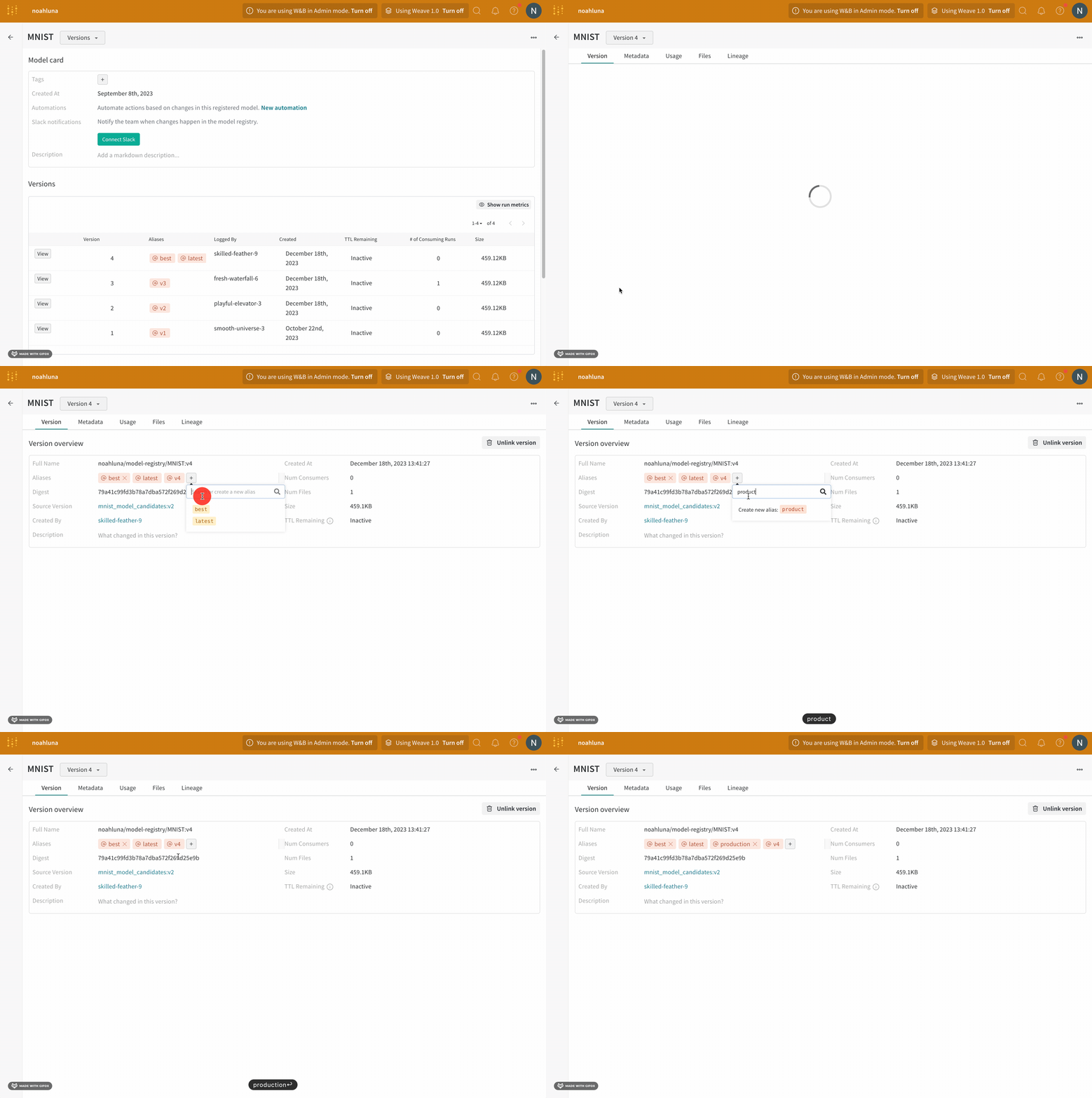
Mark a model version ready for the next stage of your machine learning workflow with a model alias. Each registered model can have one or more model aliases. A model alias can only belong to a single model version at a time. For example, suppose that after evaluating a model’s performance, you are confident that the model is ready for production. To promote that model version, add theproduction alias to that specific model version.
The
production alias is one of the most common aliases used to mark a model as production-ready.- Navigate to the Model Registry.
- Click View details next to the name of your registered model.
- Within the Versions section, click the View button next to the name of the model version you want to promote.
- Next to the Aliases field, click the plus icon (+).
- Type in
productioninto the field that appears. - Press Enter on your keyboard.